InspirationPublished 3 min read
WidgyKit kawaii widgets: cute habits, countdowns and love counter
Kawaii habits, Kawaii countdown and Together: WidgyKit's pastel widgets for tracking daily habits, counting down to a big day and counting the days you've been together.
Also available in:Tiếng Việt
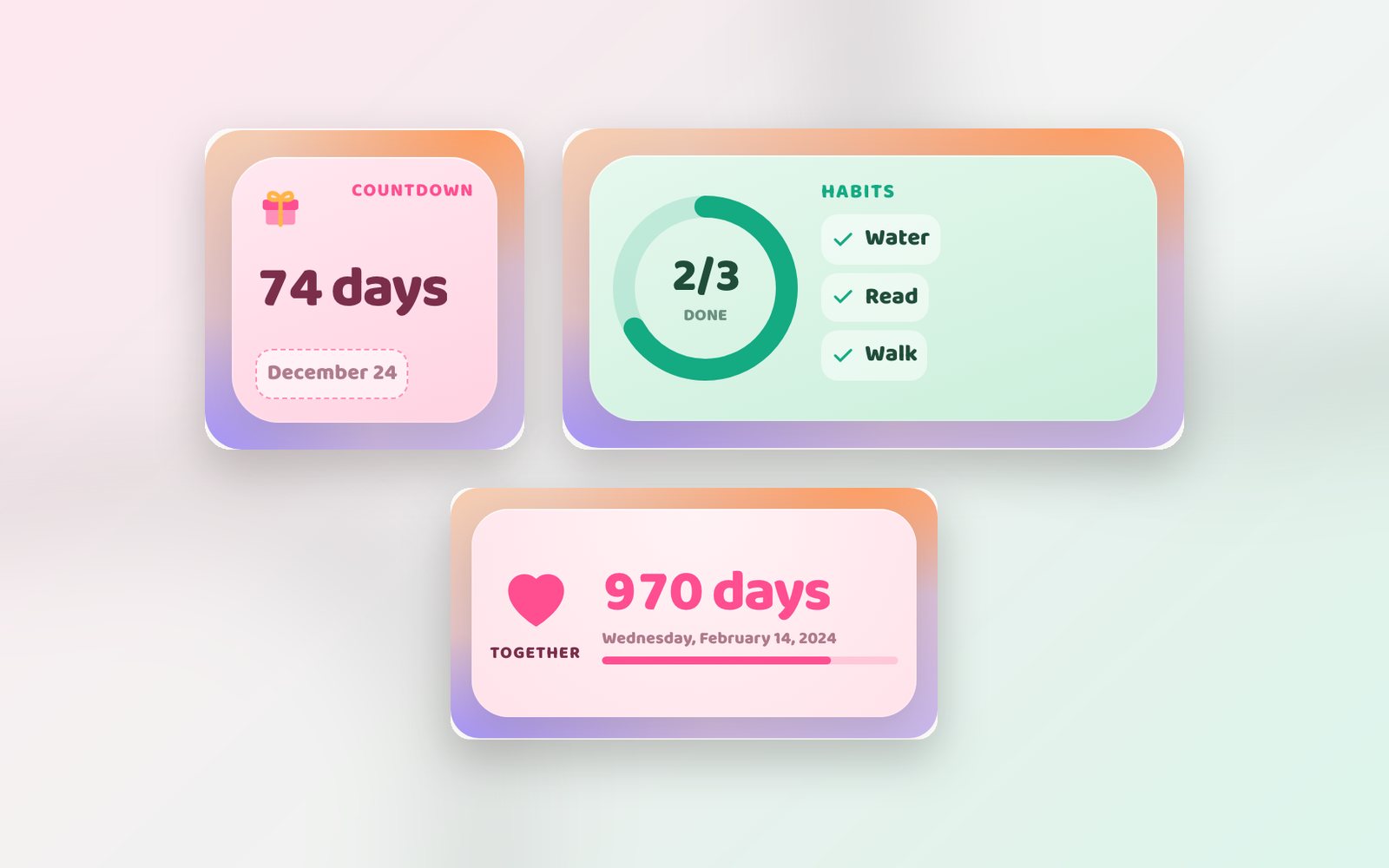
Kawaii is Japanese for "cute": pastel colours, rounded corners and tiny icons like hearts and gift boxes. It isn't only for looks. A cute widget makes habit tracking and day counting feel less like a chore, and you'll actually want to look at it every day. Here is WidgyKit's kawaii set.
Kawaii habits: a mint ring for every day
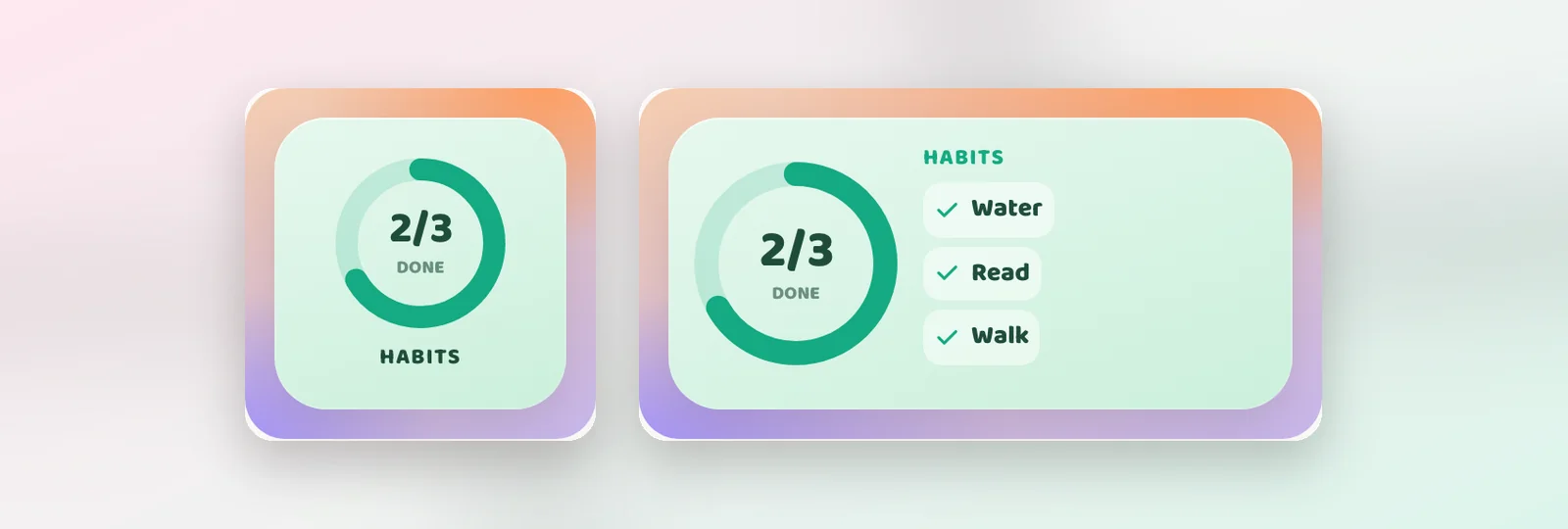
Kawaii habits shows how many of today's habits you have done with a soft mint ring.
- Small: the progress ring with your count, for example 2/3.
- Medium: adds the list of habits with check marks.
- Customize: under Habits, show all of them or only a few of the habits you created in the app.
Just getting started? The habit tracker widget guide has tips on choosing habits and keeping a streak.
Kawaii countdown: a gift box for your big day
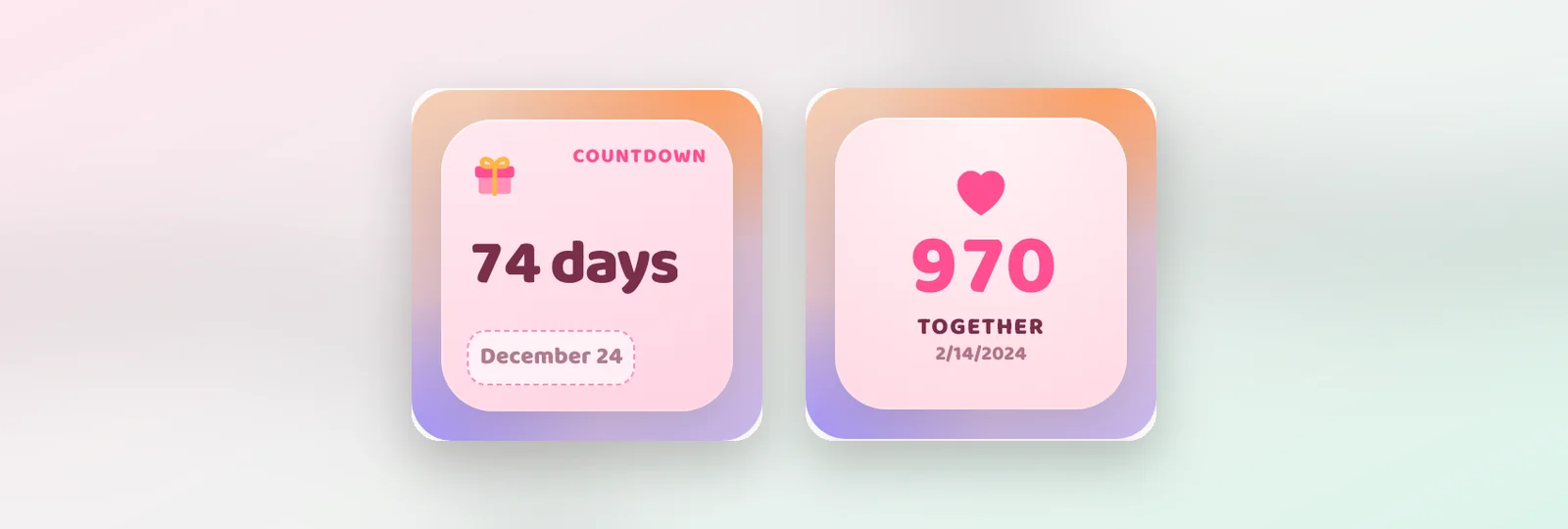
Kawaii countdown is a pastel gift box counting the days to something you're looking forward to: a birthday, a trip, an exam or Christmas.
- Size: small.
- Customize: Event (the label), Date and Repeat (yearly by default, perfect for birthdays and holidays).
More inspiration in countdown widget ideas.
Together: counting the days
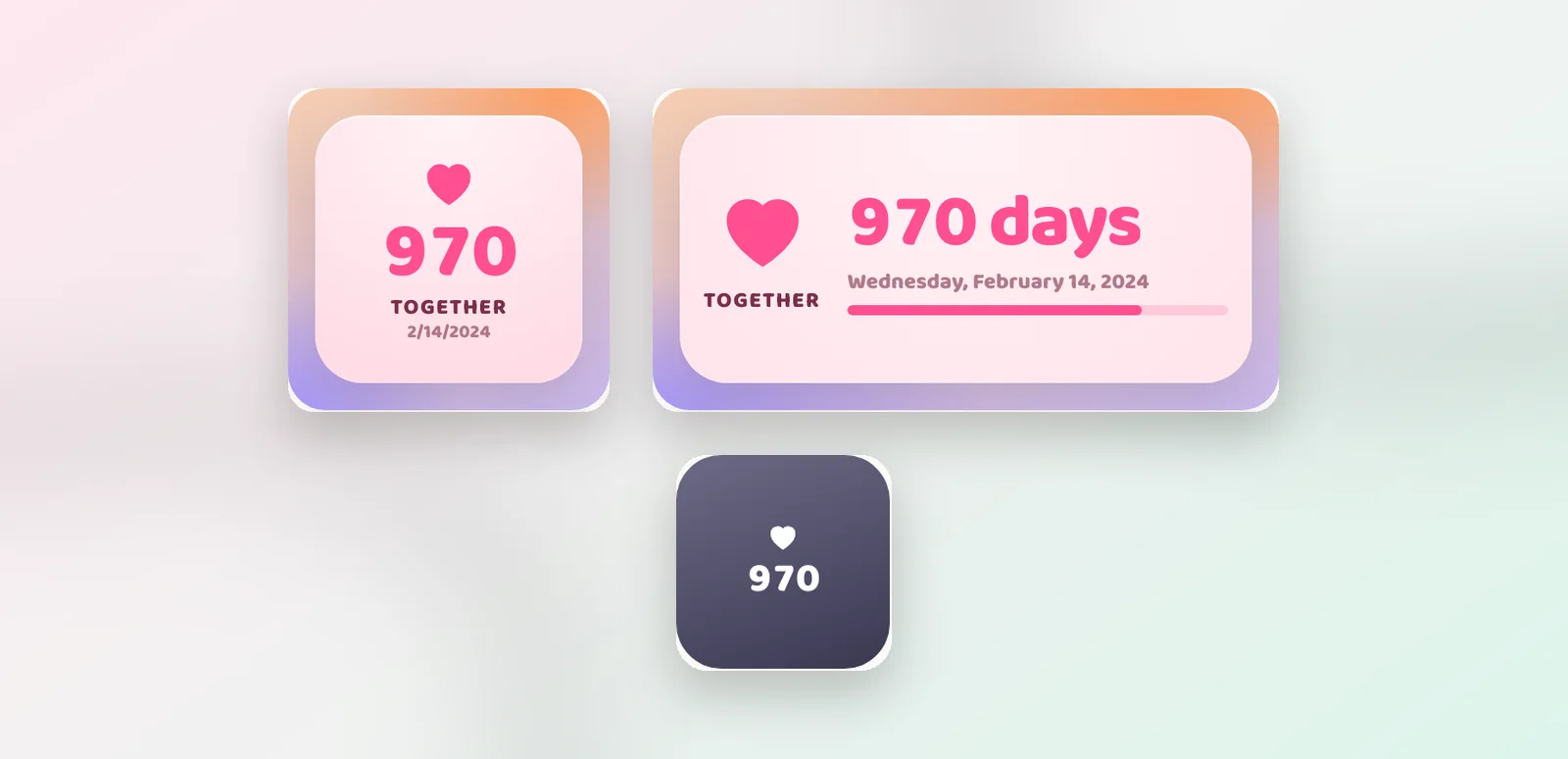
Together counts the days since a date you choose, usually the day you got together.
- Sizes: small, medium and a round Lock Screen widget (iPhone).
- Customize: Start date and Text (swap "Together" for your names or a nickname).
It also works for a wedding day, a new job or the day your baby was born.
Putting together a kawaii Home Screen
- Wallpaper: blush pink, mint or lavender, maybe soft clouds or a small pattern.
- Top row: Kawaii countdown and Together side by side.
- Bottom row: a medium Kawaii habits so every unlock reminds you to drink water and read.
All three have a dark version, so the screen stays gentle at night without losing the cuteness.
How to add kawaii widgets
- Open WidgyKit › Widgets tab › choose a kawaii design › Install.
- For Kawaii countdown and Together, tap Customize, enter the event, date or text, then Save.
- iPhone: touch and hold an empty spot › Edit › Add Widget › WidgyKit › pick a size › add. Touch and hold the widget › Edit Widget › choose the copy you just saved.
- Android: touch and hold an empty spot › Widgets › drag WidgyKit onto the screen › pick the design.
FAQ
Can I have two countdowns for different events?
Yes. Every time you customize and save, the app creates a separate copy. Place two widgets and choose a different copy for each (on iPhone, in Edit Widget).
Are the kawaii widgets free?
In the current catalog, Kawaii habits, Kawaii countdown and Together are all marked Free.
Is what I type stored online?
No. Customize settings stay on your phone.
Wrapping up
Cute and useful: a habit ring, a gift-box countdown and a heart that counts the days are all it takes to add a little joy to your Home Screen. Download WidgyKit to get started.
Keep reading
Inspiration4 min read
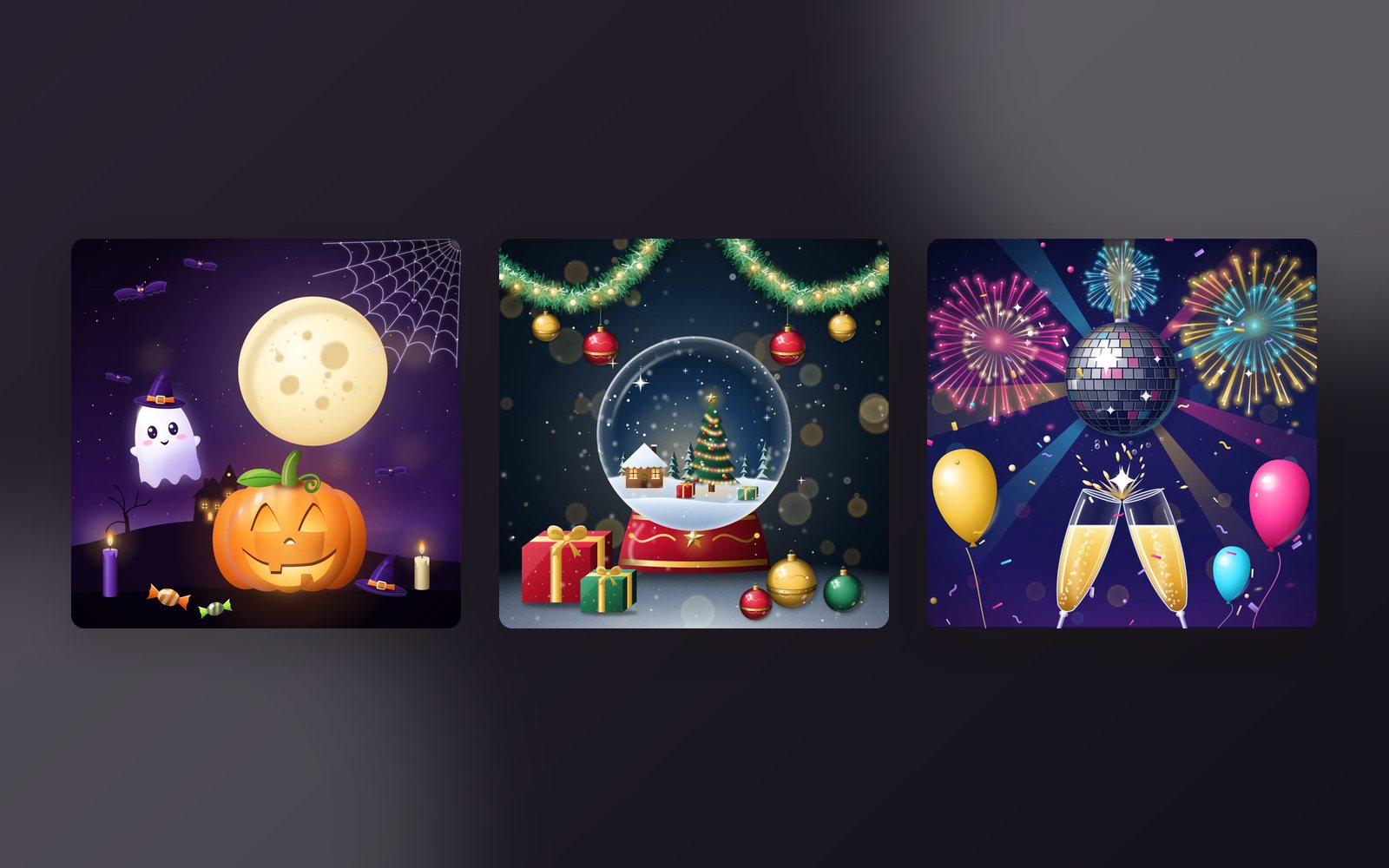
WidgyKit holiday theme sets: Halloween, Christmas and New Year
Three WidgyKit holiday theme sets, each with a countdown, a big-number card, a month calendar and wallpapers. Install a whole set in one tap.
Inspiration5 min read
Countdown Widget Ideas: 10 Events Worth Counting Down To
Countdown widget ideas for New Year, birthdays, exams, trips, weddings and launches, with styling tips, fixed vs moving dates and multiple countdowns in one widget.
Inspiration6 min read
10 Aesthetic Home Screen Ideas You Can Copy Today
Ten aesthetic home screen ideas for iPhone and Android, with the exact widgets, sizes and color tips to build each look, plus the design principles behind them.