GuidesPublished 5 min read
How to Put Widgets on Your Windows 11 Desktop
Windows 11 keeps widgets in a side board. Here is how to put live clocks, calendars and weather on the desktop itself, move them and keep them after a restart.
Also available in:Tiếng Việt
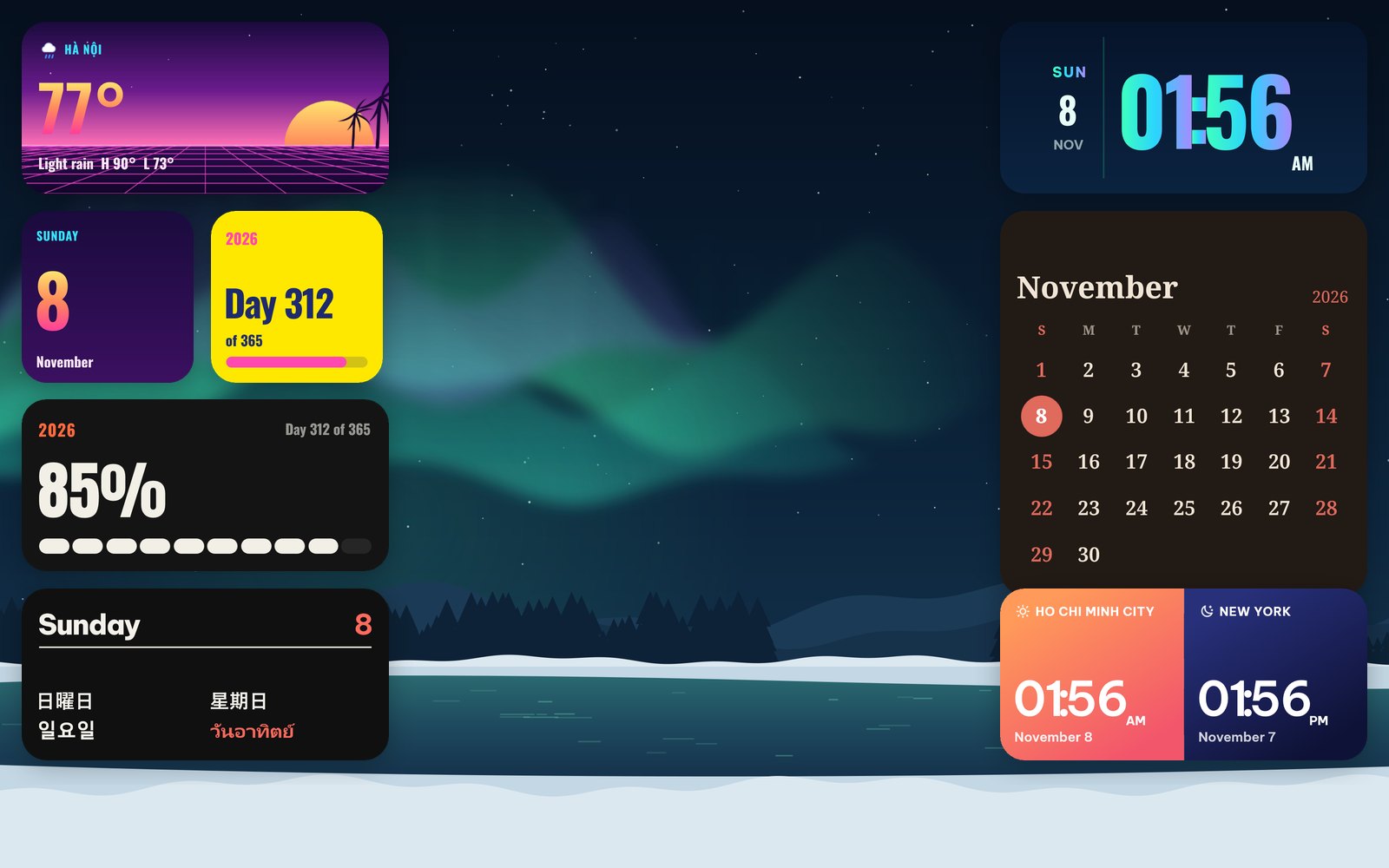
Windows 11 has widgets, but they live in a panel that slides out from the left edge when you press Win + W. They are not on the desktop itself, and they disappear the moment you click somewhere else. If you want a clock, a calendar or the weather sitting on your wallpaper all day, the way you have them on your phone, you need an app that draws widgets on the desktop.
This guide uses WidgyKit for Windows, which is free on the Microsoft Store. Every screenshot below comes from the app running on our Windows 11 test PC.
The Widgets board and desktop widgets are different things
| Widgets board (Win + W) | Desktop widgets (WidgyKit) | |
|---|---|---|
| Where | A panel over the left side of the screen | On your wallpaper, under your windows |
| Always visible | No, it closes when you click away | Yes, whenever you look at the desktop |
| Look | Microsoft's card style | The widget's own design, fonts and art |
| Position | Fixed order in the panel | Anywhere you drag it |
The board is good for news and quick glances. Desktop widgets are for the things you want to see every time you minimise a window: the date, your next meeting, today's weather, a countdown.
Step 1: Install WidgyKit and pick a widget
Get WidgyKit from the Microsoft Store and open it. The Widget tab lists the whole catalog. You can search, browse by category, or look at Suggested for you, which puts holidays and weather for your country first.
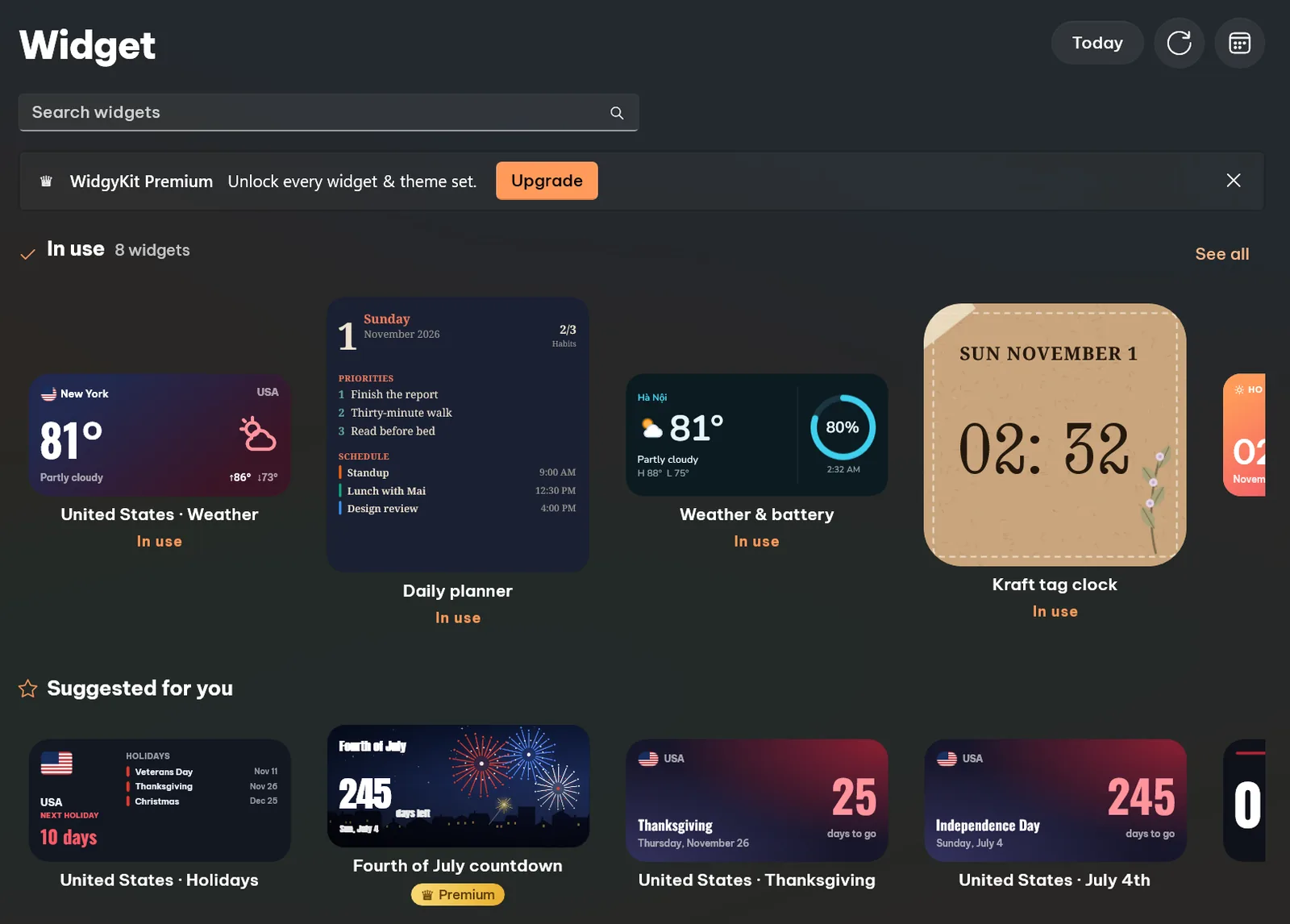
Click a widget to open its page. You see a large live preview, whether it is Free or Premium, and the permissions it needs (location for weather, calendar access for events).
Step 2: Click "Add to desktop"
On the widget page, click Add to desktop. The small arrow next to it lets you choose the size first: Small, Wide or Large, depending on what the design offers. The widget appears on your desktop straight away.
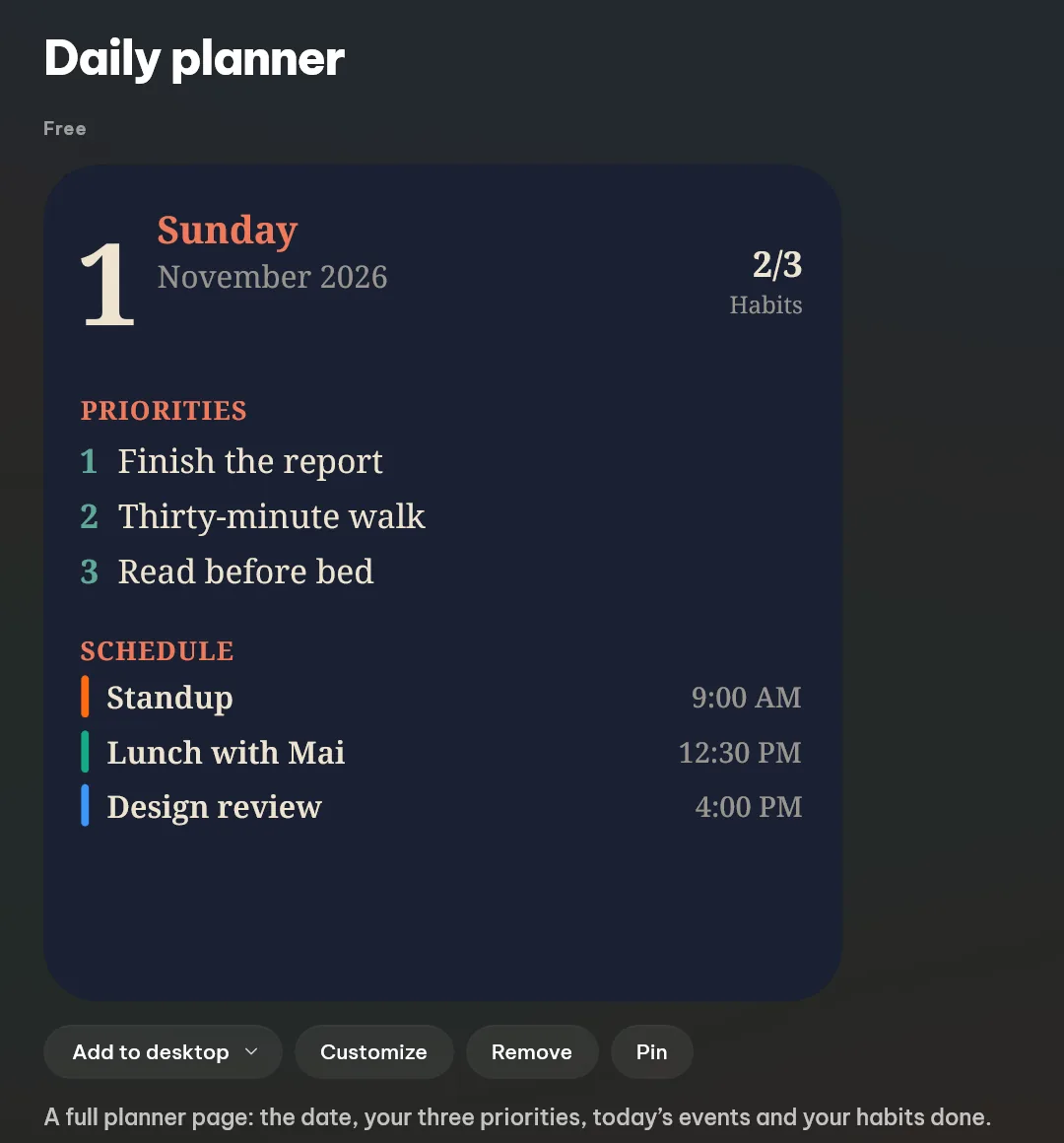
Other buttons on the same page:
- Customize changes what the widget shows: the city for weather, the event for a countdown, the calendars for an agenda.
- Pin keeps the widget at the top of the Widget tab.
- Remove takes it off this PC, desktop copies included.
You can add the same widget more than once, for example two world clocks set to different cities.
Step 3: Arrange the widgets on your desktop
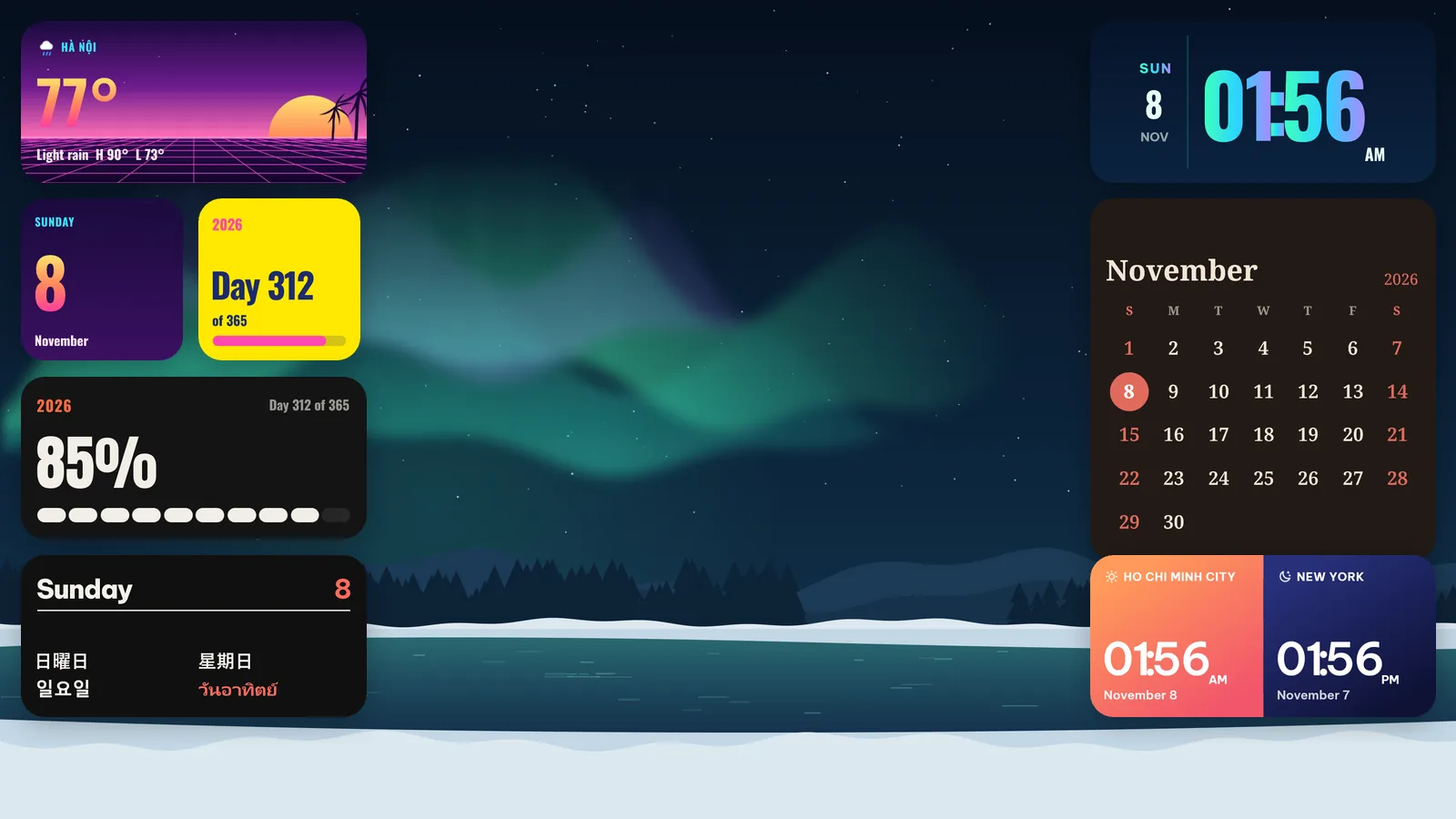
- Move: drag a widget with the mouse. It stays where you drop it.
- Resize: right-click it and choose Small, Wide or Large. Widgets have fixed sizes, so they always keep their layout instead of stretching.
- Change or remove: the same right-click menu has Customize, Open (jumps to its page in the app) and Remove.
- Refresh: hover a wide or large widget and a small refresh button appears in the corner. You rarely need it, since clocks tick every minute and weather updates on its own.
Widgets sit under your apps, so they never cover the window you are working in. Press Win + D to show the desktop and they are all there.
Step 4: Keep them after a restart
The first time you place a widget, WidgyKit turns on Start with Windows. After a restart or a sign-in, your widgets come back in the same spots. You can switch this off in the app under Account › Permissions & accuracy. The same page is where you allow approximate location for weather and calendar access for event widgets. Widgets work without either. Weather widgets then use a city you choose.
Or place a whole theme set in one click
If you would rather not build a layout yourself, open a theme set from the Widget tab. A set is a desktop picture plus widgets designed for it, already arranged for a widescreen display.
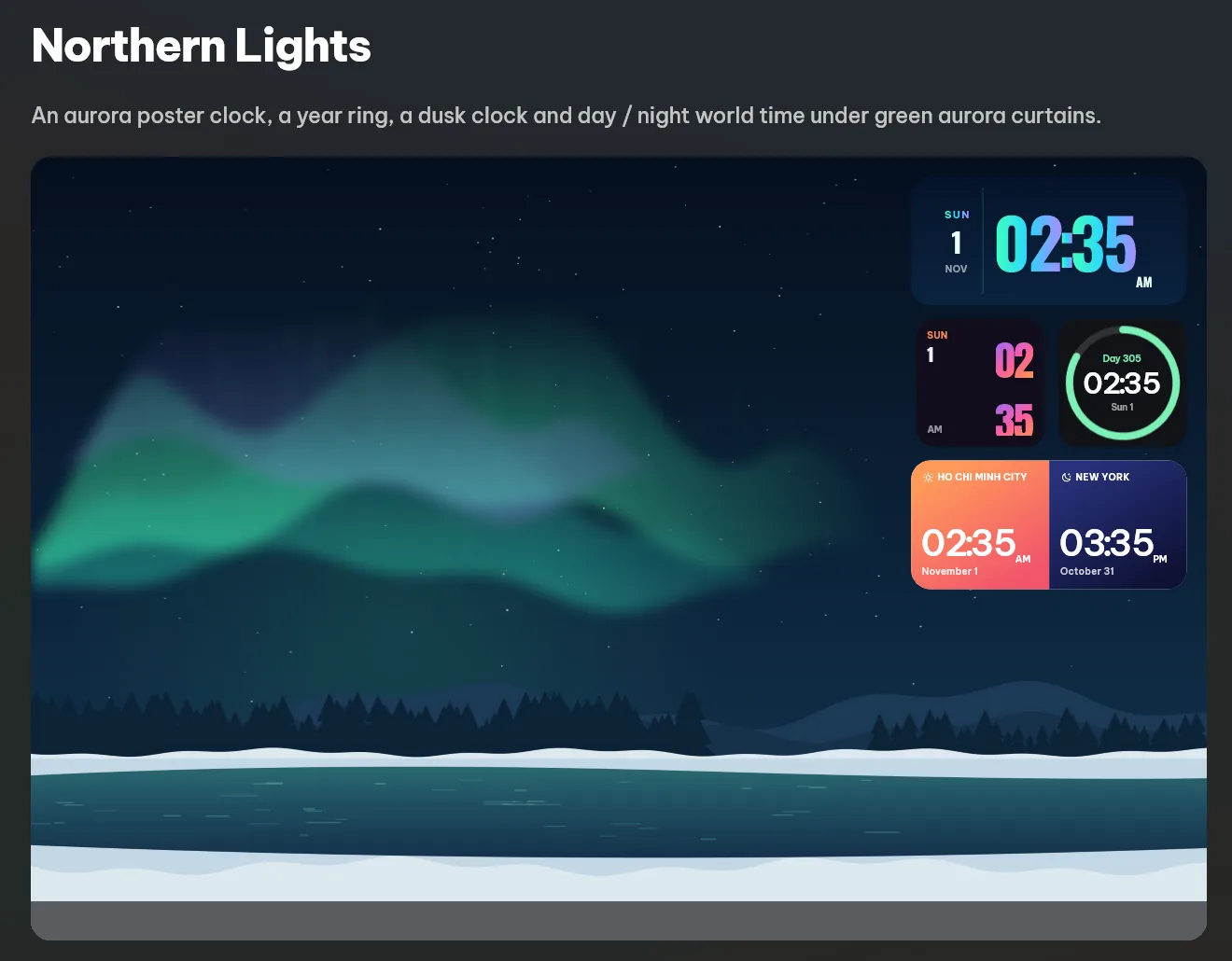
Click Place widgets on the desktop to put the whole group in its corner. Set wallpaper downloads the matching picture and makes it your background (the app asks first, and you can switch back in Settings › Personalisation). Northern Lights is free. We picked ten sets with different moods in aesthetic Windows desktop setups.
What you can put on the desktop
- Clocks: flip clocks, analog dials, neon, LCD and minimal type. See the retro flip clock family.
- Calendars: month grids, today's date, week views and your next events from the Windows calendar.
- Weather: now, today and the next days, for your approximate location or a city you choose.
- Countdowns: holidays, exams, trips and birthdays. Ideas in countdown widget ideas.
- World time: two, three or four cities for remote teams.
- Habits, quotes, year progress and battery for laptops.
FAQ
Does it work on Windows 10?
Yes. WidgyKit needs Windows 10 version 2004 or later, or any Windows 11 build. The steps are the same.
Do desktop widgets slow down my PC?
The app redraws a widget only when its content changes, for example once a minute for a clock. Weather and other online data are fetched every few hours and shared between widgets that need the same thing.
Is it free?
Yes. Many widgets and sizes are free, there are no ads on Windows, and you do not need an account to start. WidgyKit Premium unlocks every design and theme set. It belongs to your WidgyKit account, so if you sign in with the same account on your phone, it works on both.
Can I have the same widgets on my phone?
Yes. The catalog is the same on Windows, Android and iPhone. Sign in on both devices and your pinned widgets and Premium follow you.
Wrapping up
The Widgets board is fine for headlines, but your desktop is where your eyes land all day. Put a clock, a calendar and the weather there, drag them where they feel right, and they will be waiting every time you minimise a window. Get WidgyKit from the Microsoft Store, or see all download options for Android and the iPhone beta.
Keep reading
Guides7 min read
One Widget App vs Many Widget Apps: Which Is Better?
One widget app or a dozen single-purpose ones? Compare consistency, storage, battery, privacy and subscriptions, plus a checklist for choosing a widget app.
Guides6 min read
How to Add Widgets to Your Android Home Screen
How to add widgets to your Android home screen, with notes for Pixel, Samsung and Xiaomi, plus resizing, stacks and fixes for widgets that won't update.
Guides6 min read
How to Add Widgets to Your iPhone Home Screen (iOS 17–26)
Learn how to add widgets to your iPhone Home Screen on iOS 17, iOS 18 and iOS 26: pick sizes, build Smart Stacks, resize, and fix widgets that won't show.