DesignPublished 3 min read
WidgyKit retro flip clock widgets
Flip classic, Flip cream, Flip glass, Flip date and Flip & weather: the WidgyKit split-flap clock family, with sizes, pairing ideas and setup steps.
Also available in:Tiếng Việt
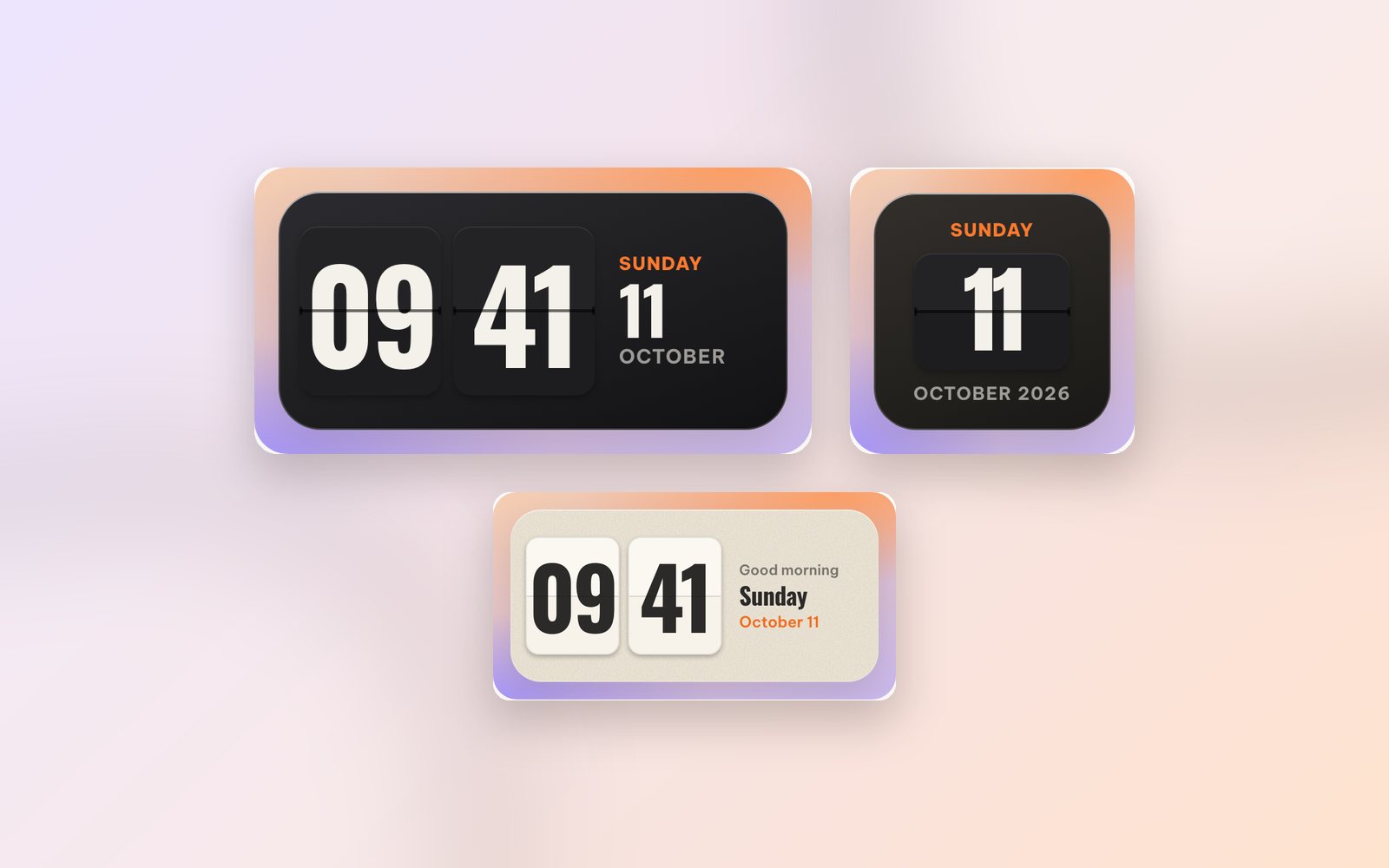
The little "clack" of a flap dropping is something many of us remember from desk clocks and railway departure boards. That is why flip clocks feel nostalgic yet stay easy to read. WidgyKit has a whole family of split-flap widgets, from the classic black and cream to a frosted glass version made for photo wallpapers.
Why flip clocks never go out of style
- Big, separate digits: hours and minutes sit on their own cards, readable in a second.
- Depth: the fold line and soft shadow make the clock feel like a real object.
- Easy to match: dark for dark wallpapers, cream for light ones, glass for photos.
Flip classic: black and cream, date underneath
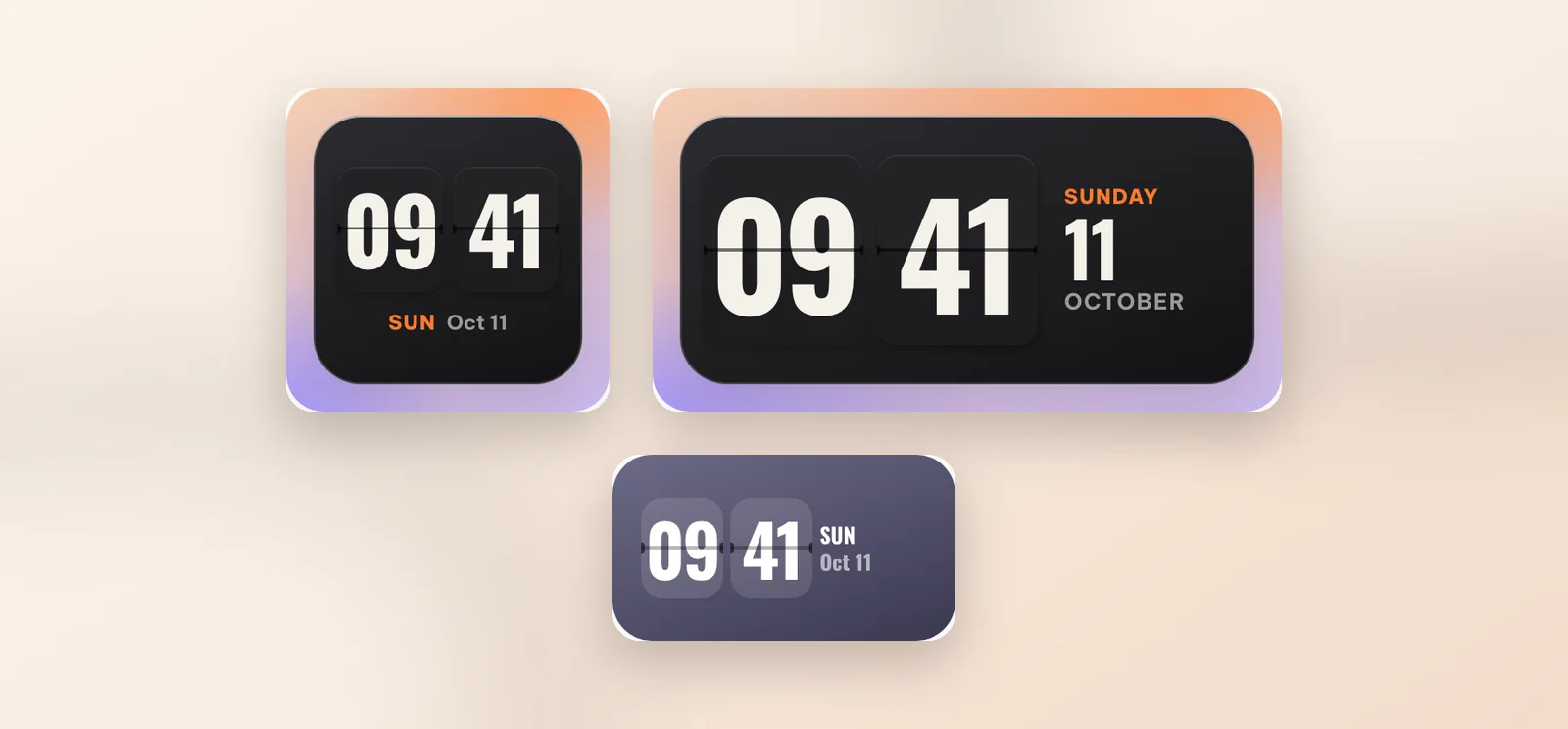
Flip classic is the reference design: black cards, cream digits, the weekday and date in orange beside them.
- Small: hour and minute cards with the date below.
- Medium: adds the weekday and date on the right.
- Lock Screen (iPhone): a neat rectangular version.
Flip cream and Flip glass
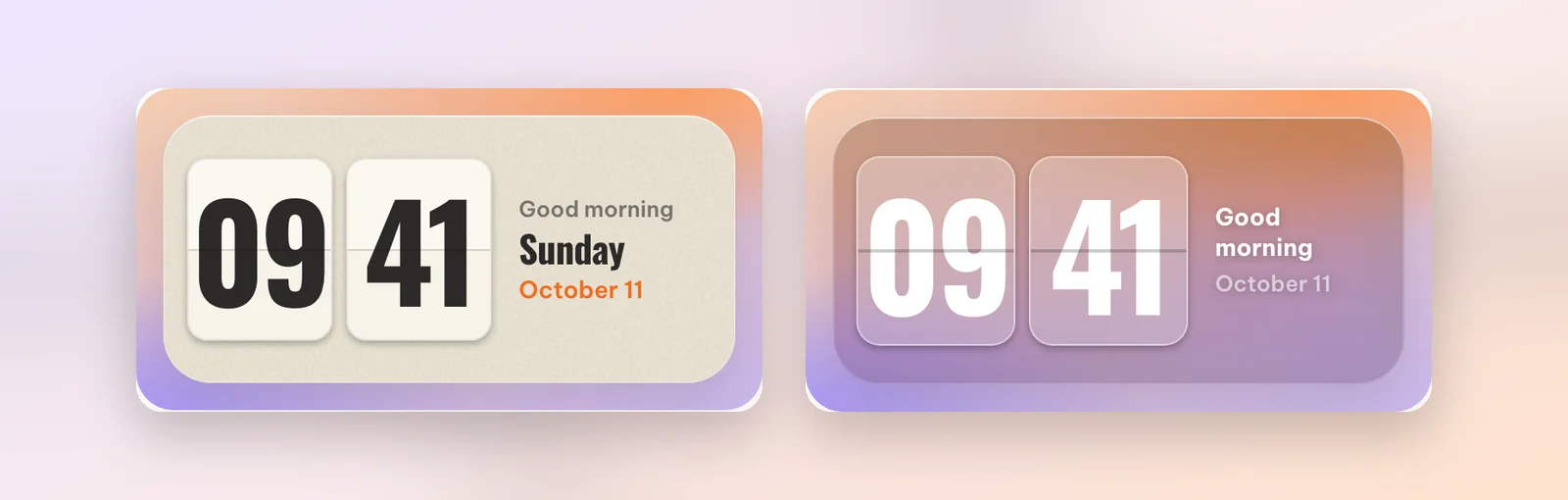
- Flip cream is paper-white with a warm orange accent, a greeting that changes through the day, and the weekday and date. It switches to a dark look when your phone does.
- Flip glass uses frosted, translucent cards so your wallpaper shows through. It is the one to pick for photo wallpapers; see the rest of the frosted glass widgets.
Both come in small and medium.
Flip date and Flip & weather
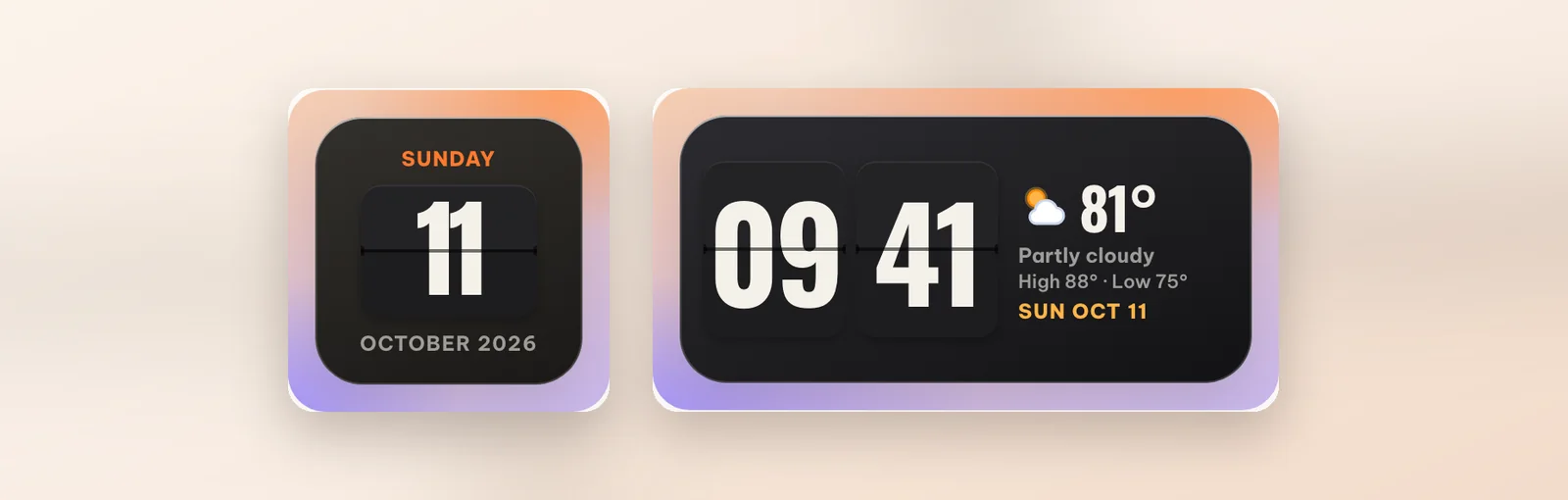
- Flip date is a single card for today's date, weekday above, month and year below. Small and an iPhone Lock Screen circle.
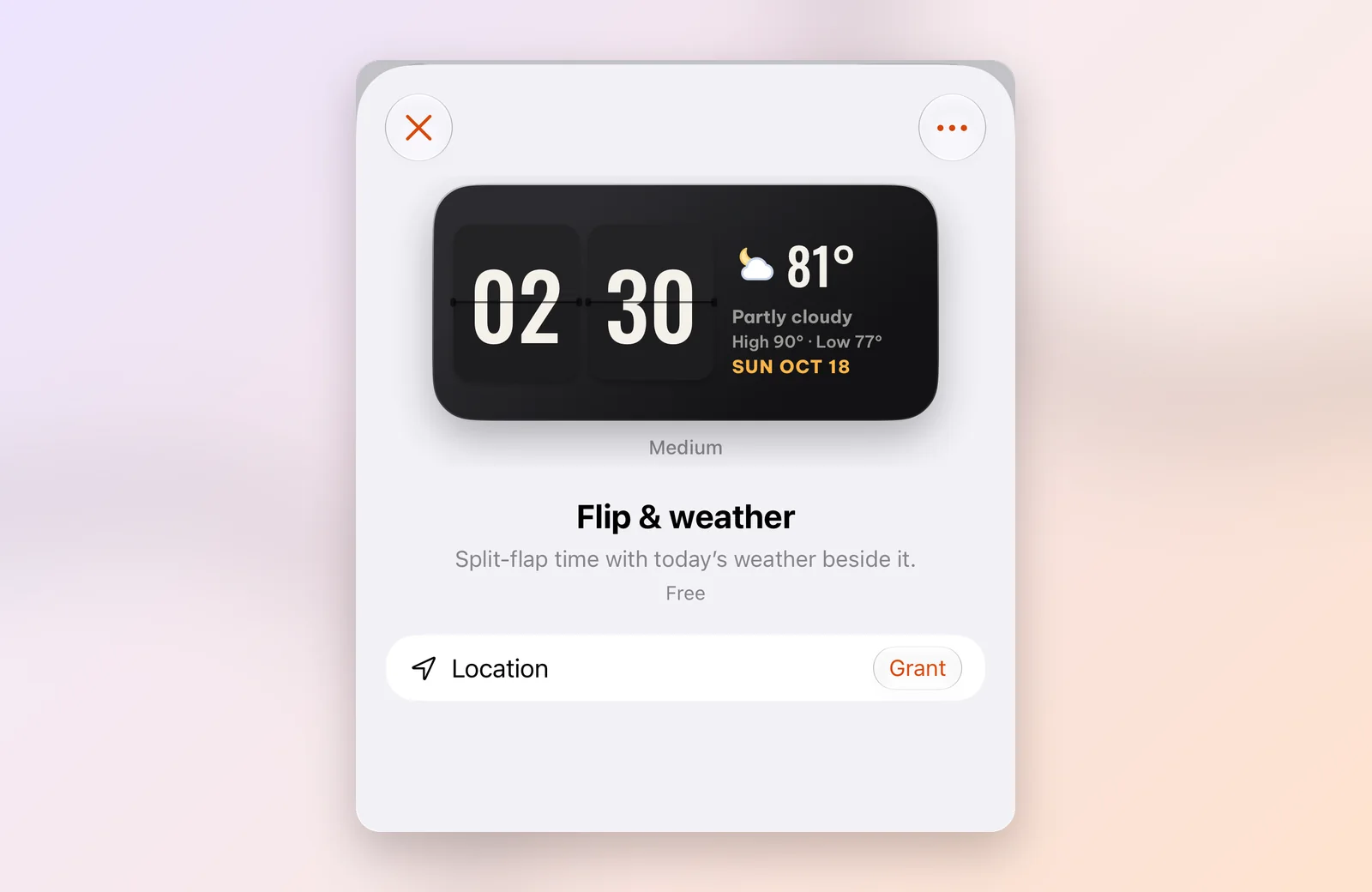
- Flip & weather pairs the flip clock with today's weather: temperature, conditions, high and low. It needs your location, and the app asks for it right on the detail page.
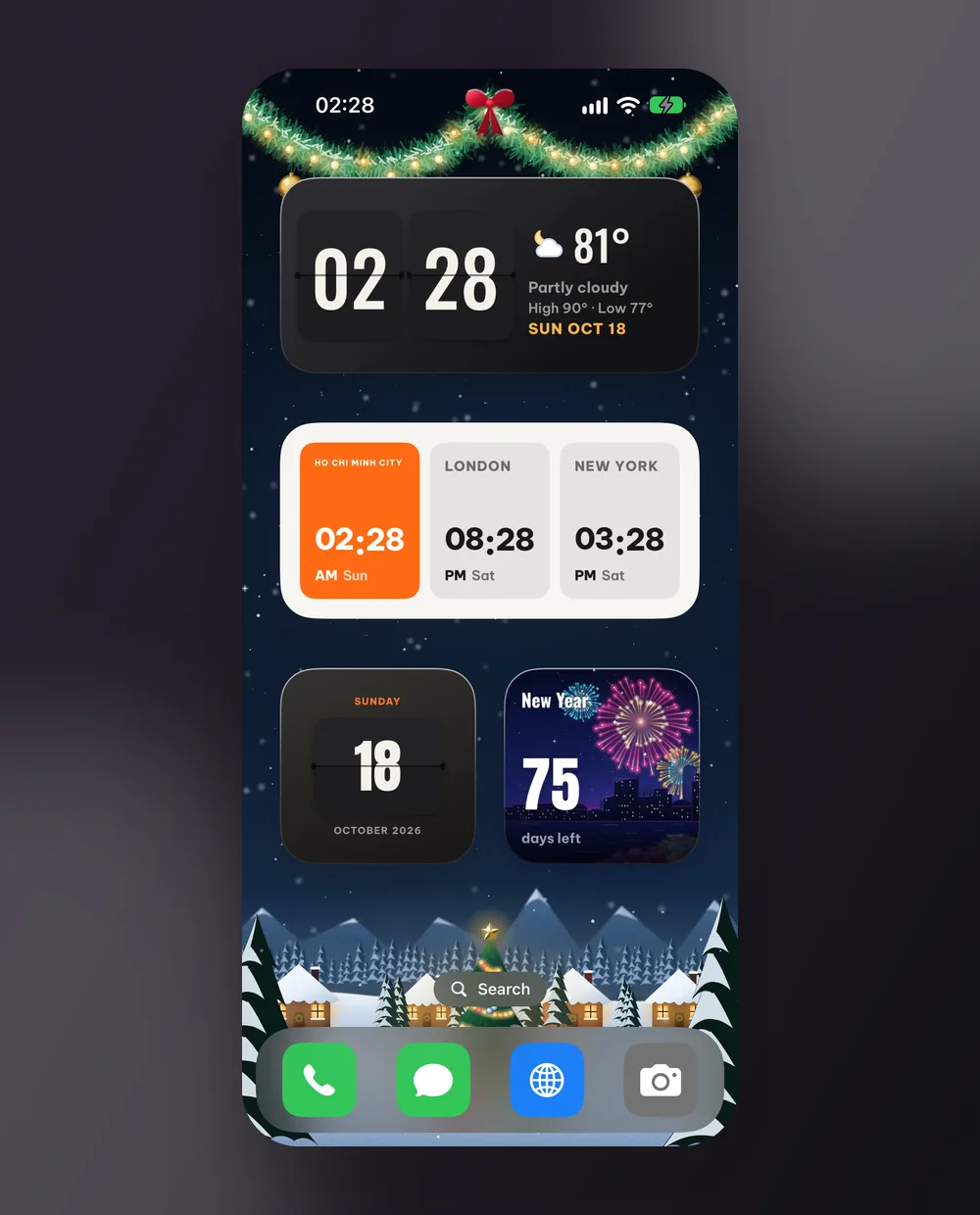
Need New York time? USA · flip & holidays uses the same split-flap look with the US flag, the next federal holiday and the weather, and you can change the city in Customize. For several cities at once, see the World trio widget.
Pairing ideas
- Dark and vintage: a medium Flip classic on top, a small Flip date below, on a dark wood or plain black wallpaper.
- Light and soft: a medium Flip cream with the Swiss-style calendar widgets.
- Photo wallpaper: a small Flip glass in a corner, leaving the rest to the picture.
How to add a flip clock
- Open WidgyKit, go to the Widgets tab, pick a flip design and tap Install.
- iPhone: touch and hold an empty spot › Edit › Add Widget › WidgyKit, choose a size and add it. Touch and hold the widget › Edit Widget › pick the design.
- Android: touch and hold an empty spot › Widgets › drag WidgyKit onto the screen › pick the design.
More detail in how to add widgets to your iPhone Home Screen.
FAQ
Does the flip clock keep accurate time?
Yes. Hours and minutes are drawn from your phone's own clock, so they always match system time, even offline.
Are the flip clock widgets free?
In the current catalog, every flip design in this article is marked Free.
Wrapping up
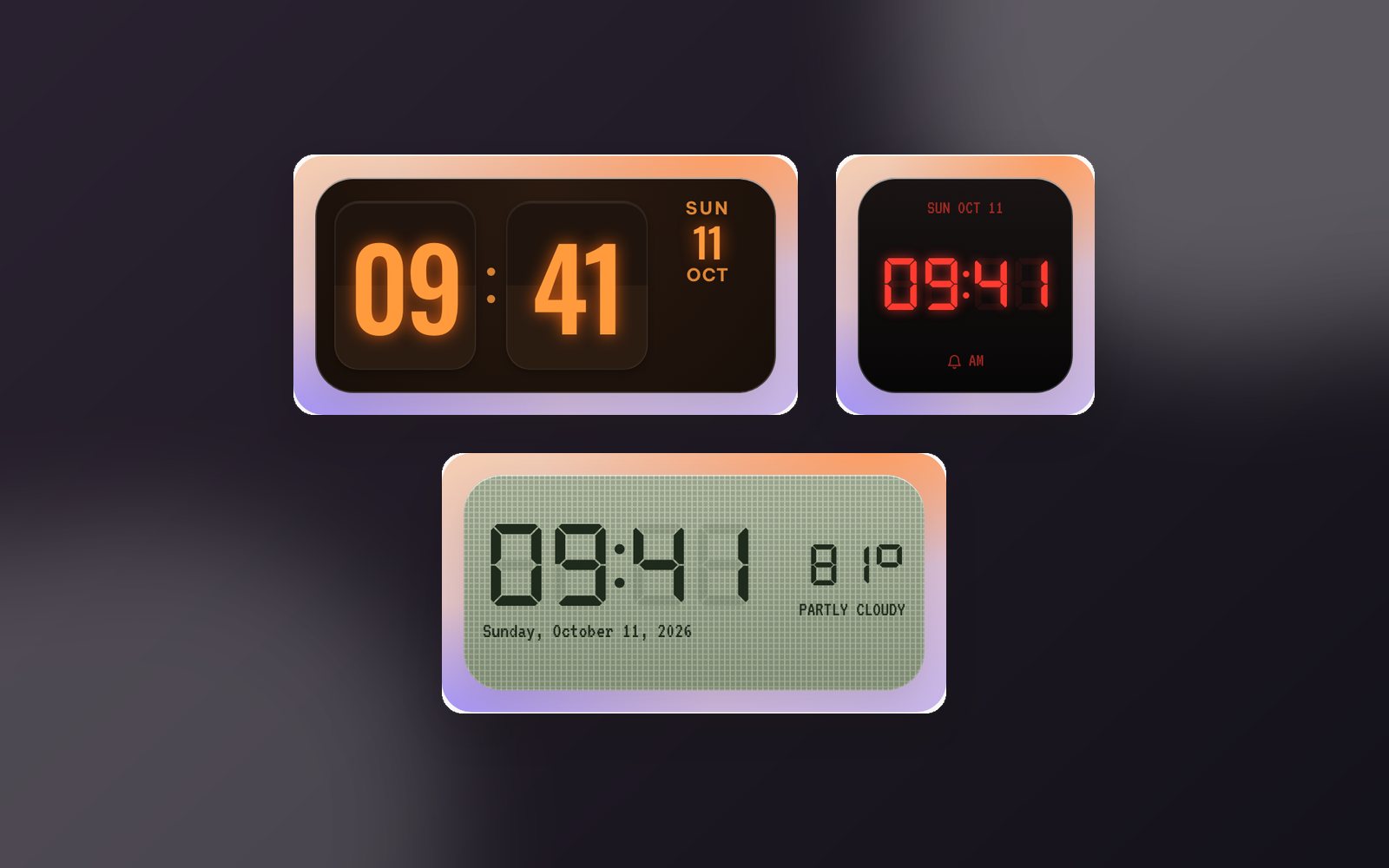
A flip clock is the quickest way to give your Home Screen a retro soul without losing legibility. Choose black, cream or glass to suit your wallpaper and download WidgyKit to try them. If you like the vintage feel, don't miss the Nixie, LED and LCD clocks.
Keep reading
Design3 min read
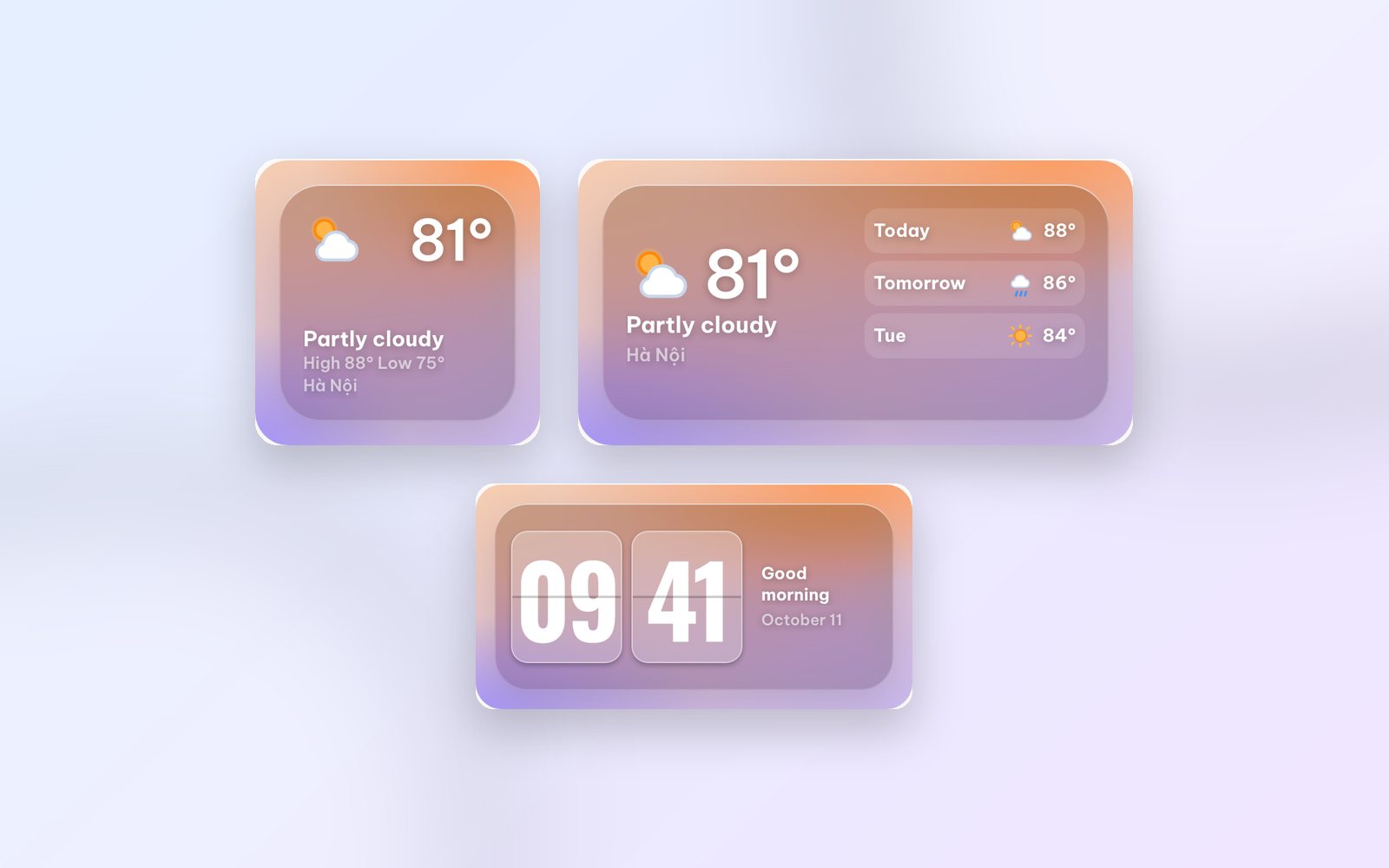
WidgyKit frosted glass weather and clock widgets
Glass weather, Flip glass, Aurora weather and Singapore · glass duo: WidgyKit's frosted glass widgets, made to show off a photo wallpaper and stay readable.
Design2 min read
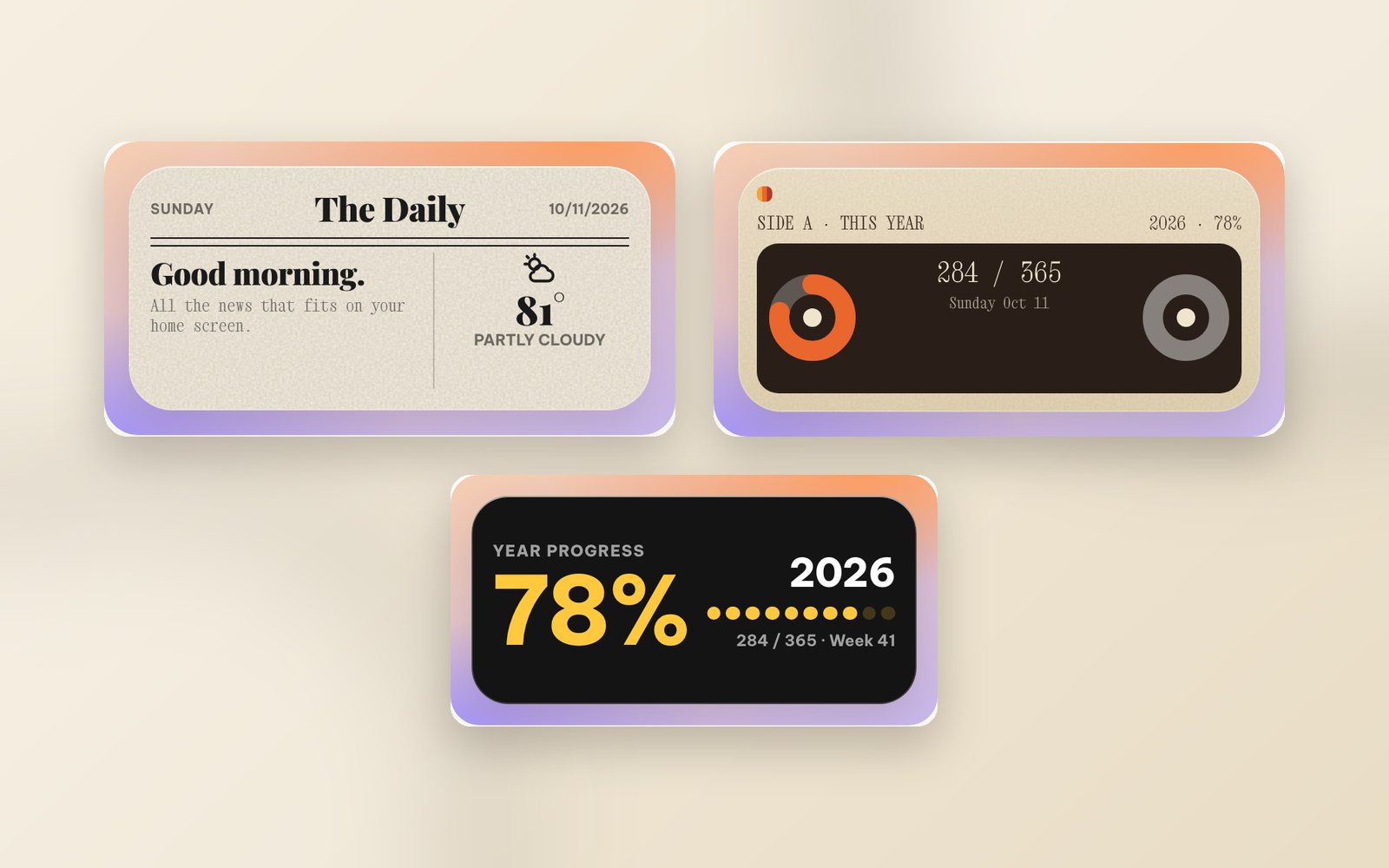
WidgyKit newspaper and paper-style retro widgets
The Daily, Mixtape year, Year progress and France · public holidays: WidgyKit widgets that bring newsprint, serif headlines and cassettes to your phone.
Design3 min read
WidgyKit Nixie, LED and LCD retro clock widgets
Nixie amber, LCD olive, LED alarm, Dot matrix and Neon night: five retro digital clock widgets in WidgyKit, each one a nod to a different era of technology.