InspirationPublished 7 min read
10 Aesthetic Windows Desktop Setups With Matching Widgets
Ten Windows desktop setups, each a wallpaper plus live widgets made for it: Northern Lights, Dark Academia, Hygge, City Lights, Zen, 80s synthwave and more.
Also available in:Tiếng Việt
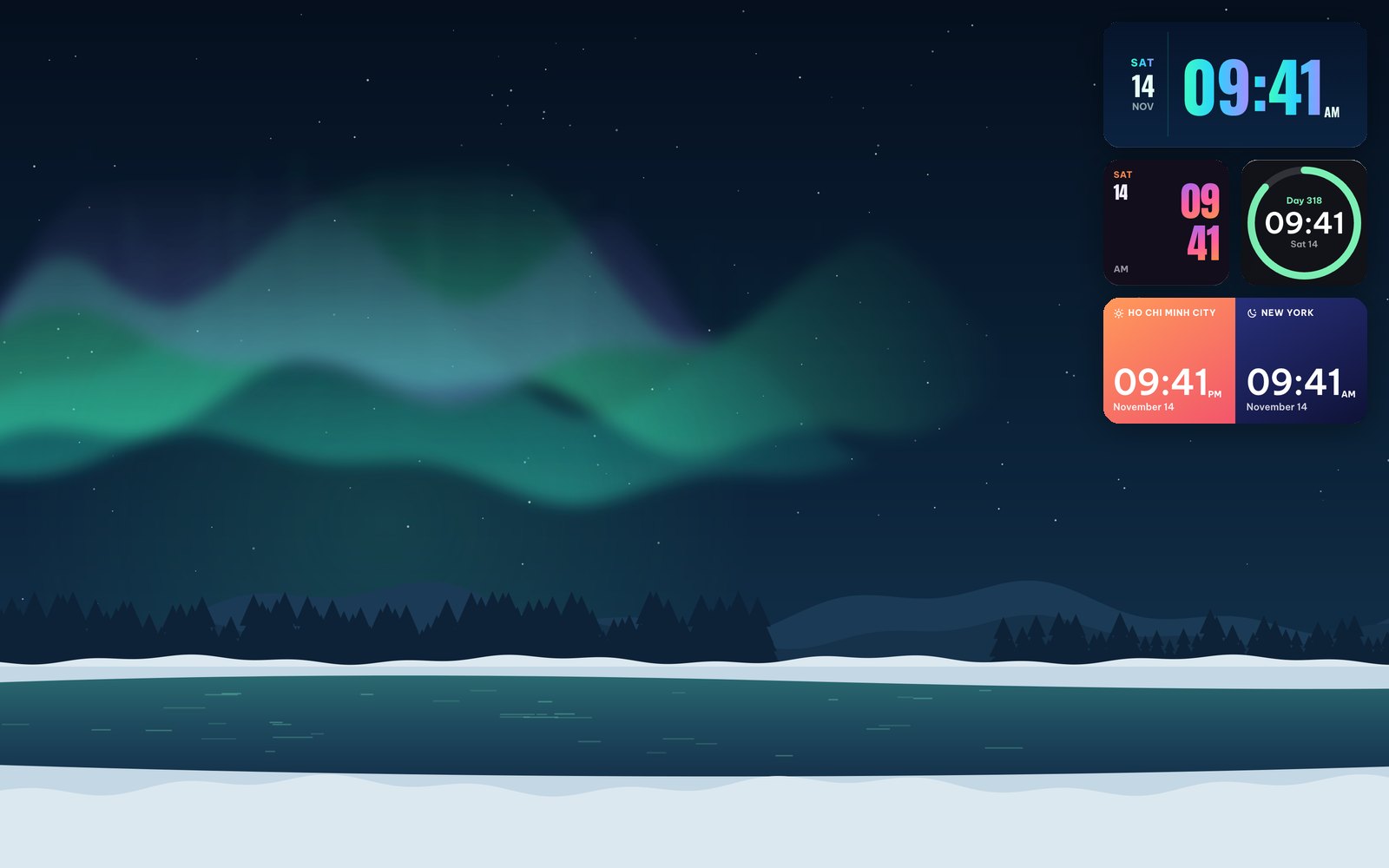
A nice desktop is not only a wallpaper. What makes a setup feel finished is the stuff on top of it: a clock that matches the colours, a calendar that does not fight the picture, a weather card placed where the sky is empty. That is hard to get right with random widgets, so each setup below is a theme set from WidgyKit: one desktop picture and four or five live widgets drawn for it, already arranged for a 16:9 screen.
Every image shows the set laid out the way the WidgyKit Windows app places it. All widgets are live, so the time, date and weather on your desktop are real, not printed on the wallpaper.
How to apply a set on Windows
- Install WidgyKit from the Microsoft Store and open the Widget tab.
- Scroll to Theme sets and open the one you like.
- Click Set wallpaper. The app asks before it changes anything, and you can switch back any time in Settings › Personalisation.
- Click Place widgets on the desktop. The widgets land in the set's corner. If you already have widgets out, the app asks whether to replace them or keep both.
Not on Windows yet? The basics of placing, moving and resizing widgets are in how to put widgets on your Windows 11 desktop.
1. Northern Lights (free)
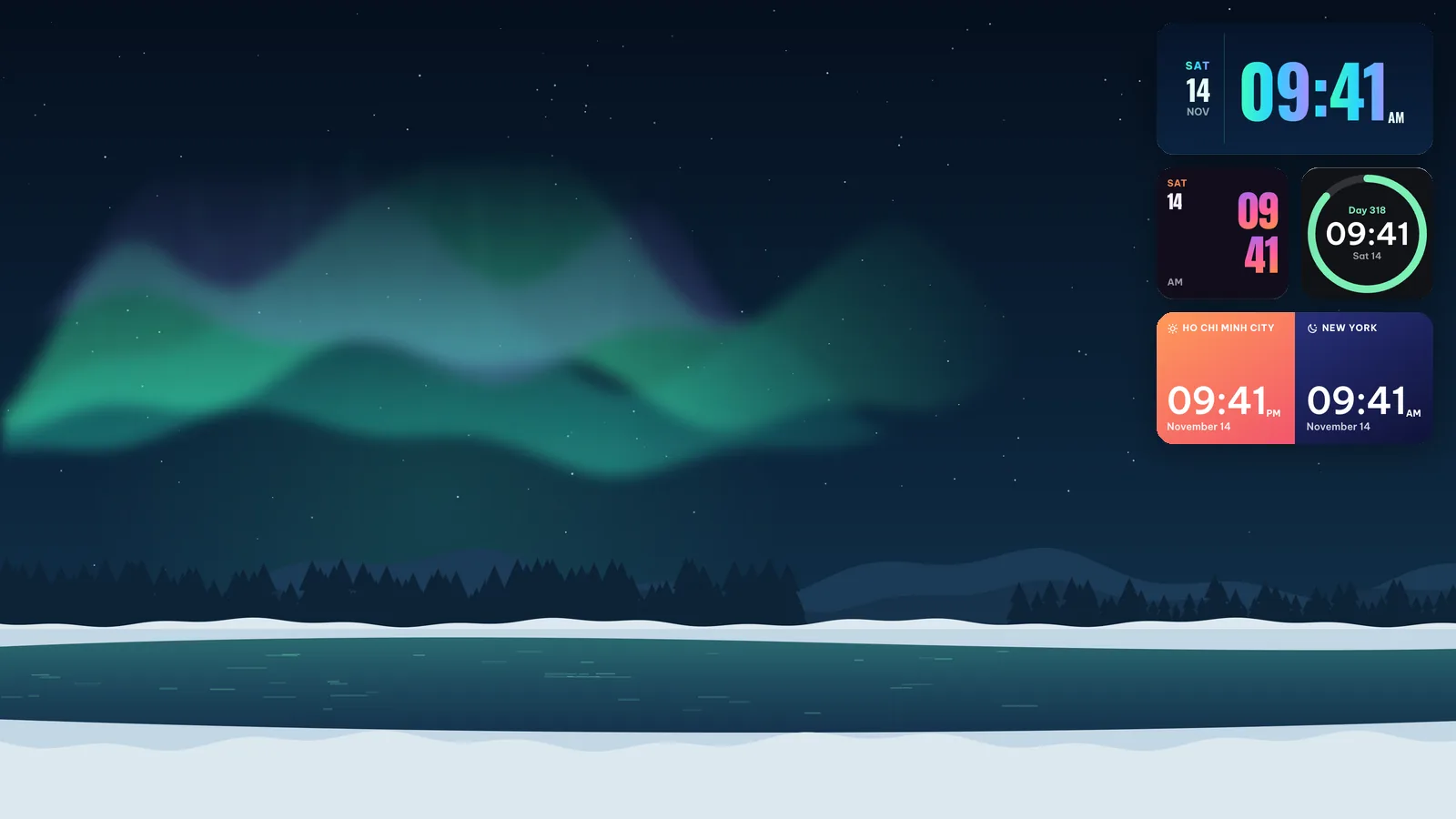
Green aurora curtains over a frozen lake and a line of pines. The widgets stack in the top-right corner, where the sky is darkest: Aurora type (the time in a wide band of northern-lights greens), a Year ring clock that fills as the year goes by, a Dusk poster clock and a Day & night pair that shows your city on a sunrise half and a far-away city on a night half.
It is the one free set, and a good place to start. Use Windows dark mode and a green accent colour (Settings › Personalisation › Colours) and the taskbar blends in.
2. Dark Academia
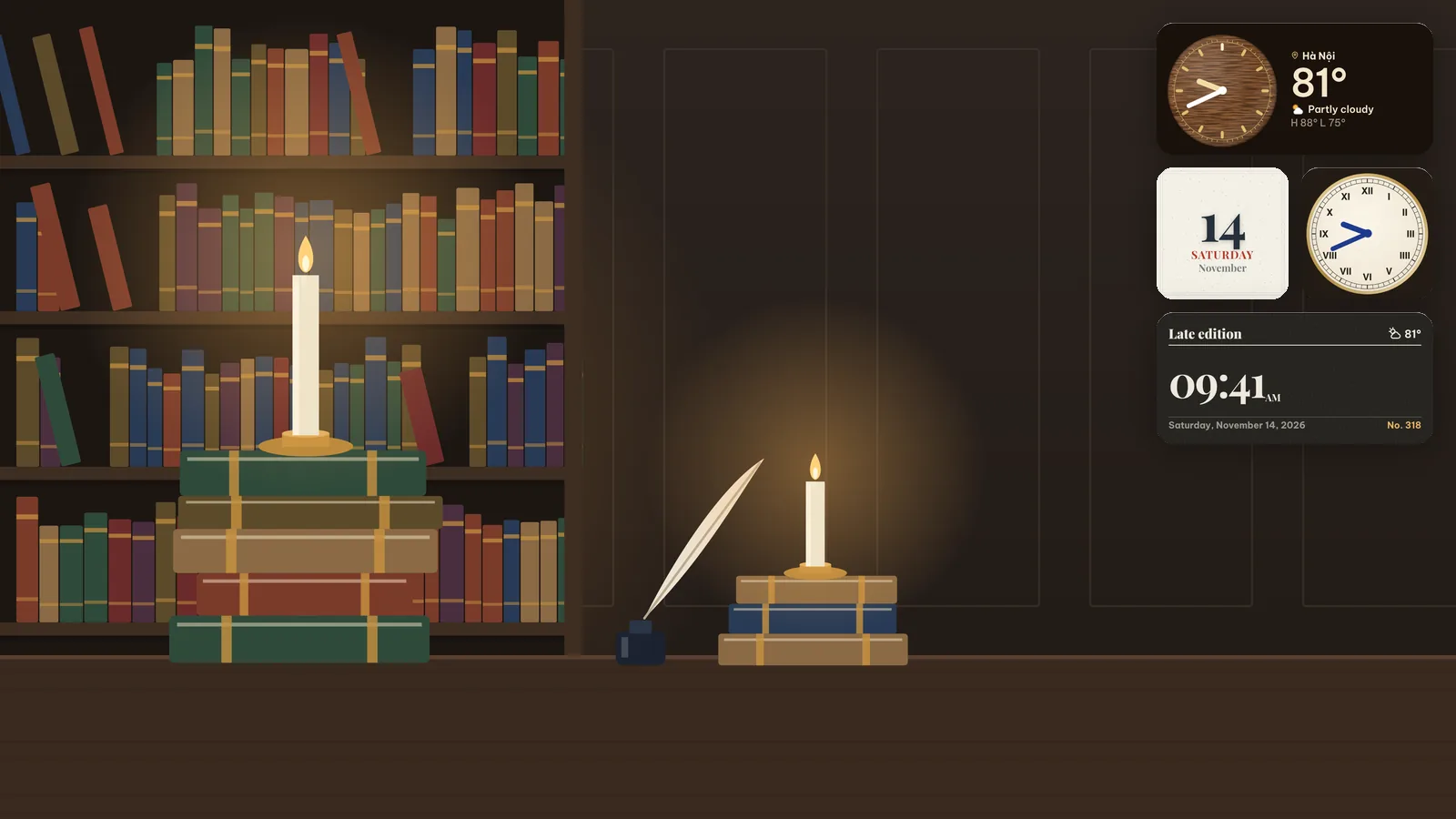
A panelled library at night, two candles burning on stacks of old books. On the right: a Walnut & brass wall clock with today's weather beside it, a Roman enamel dial, a Letterpress date pressed into cream card and the Evening edition, a newsprint clock with the date line.
Pick an amber accent in dark mode. It is a setup for long reading and writing sessions, and the candle on the left stays visible because nothing sits on top of it.
3. Hygge Evening
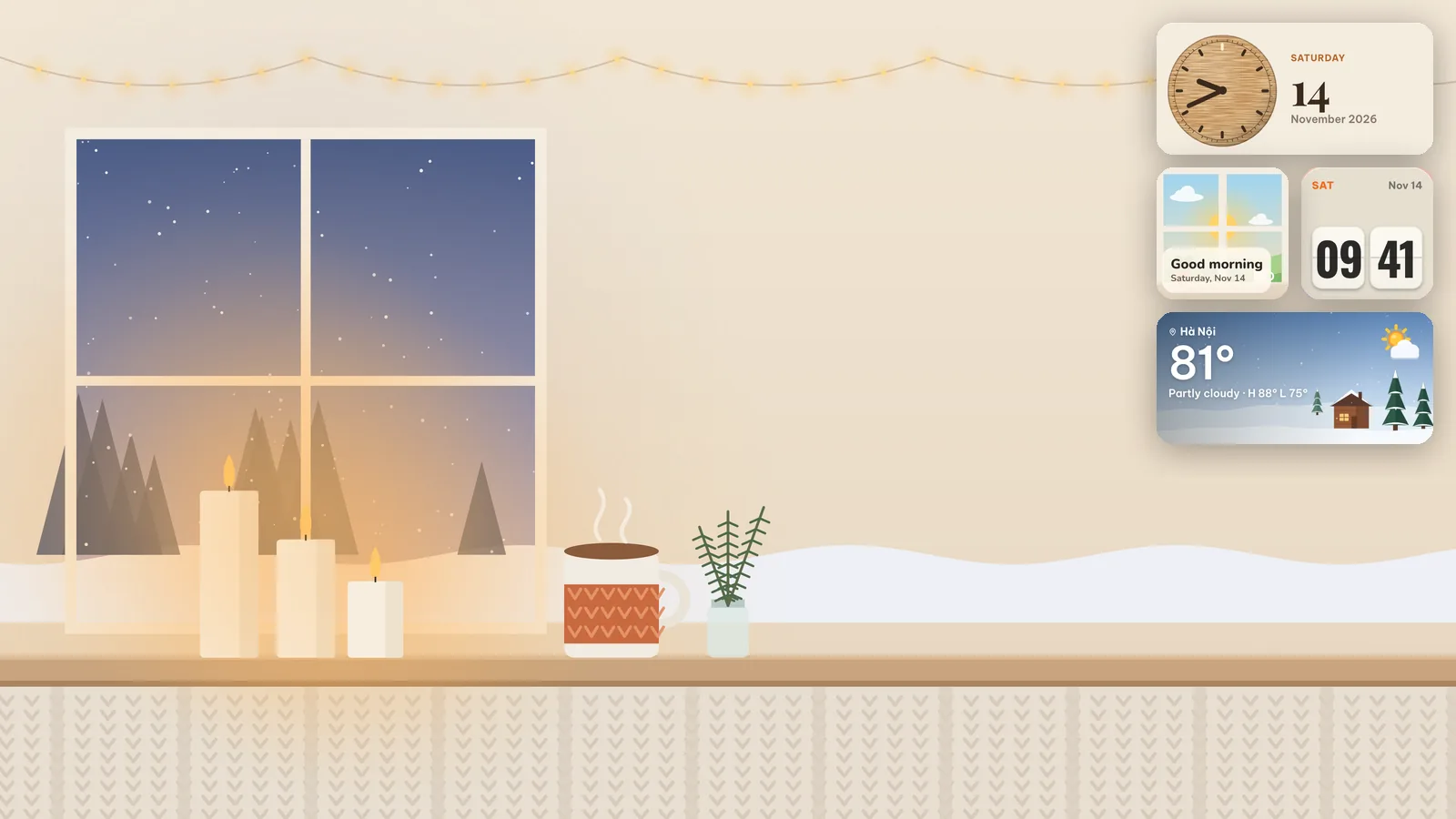
Candles, a knitted mug and snow outside the window. The widgets are soft and warm: a Light oak desk clock with a big date, the Flip cream split-flap clock, a Window greeting whose little window follows the day from sunrise to stars, and Winter weather over a snowy cabin.
This one is designed for light mode. With winter coming, it is the cosiest set in the catalog.
4. City Lights
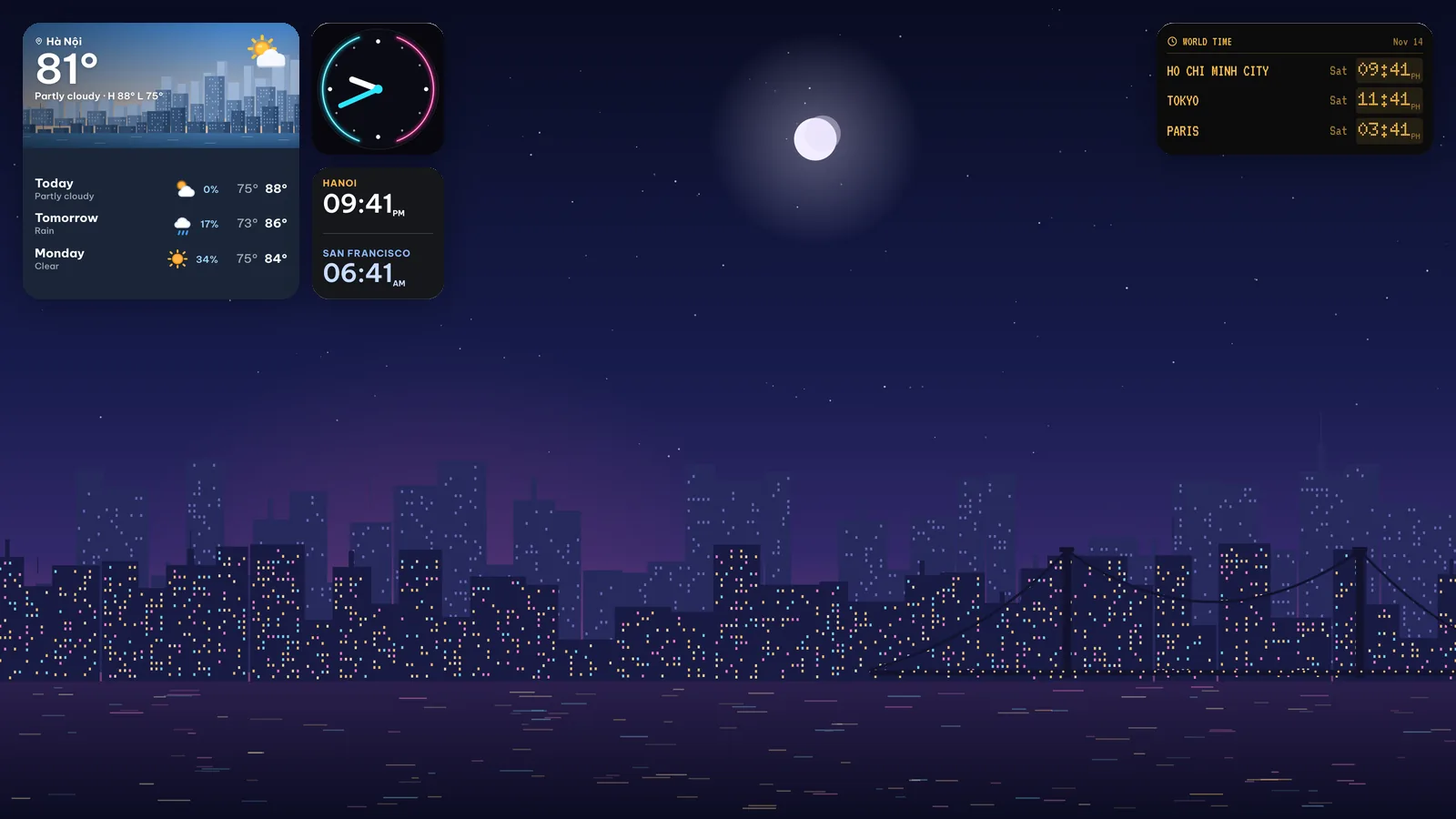
A skyline by the river after dark. This set splits across both top corners: a large Skyline 3-day weather card and a Neon dial plus Two cities clock on the left, and a Departures board with three cities in amber on the right.
Turn on dark mode and set the taskbar to hide automatically (Settings › Personalisation › Taskbar › Taskbar behaviours) so the skyline runs edge to edge. Great for anyone who works with people in other time zones.
5. Zen Focus
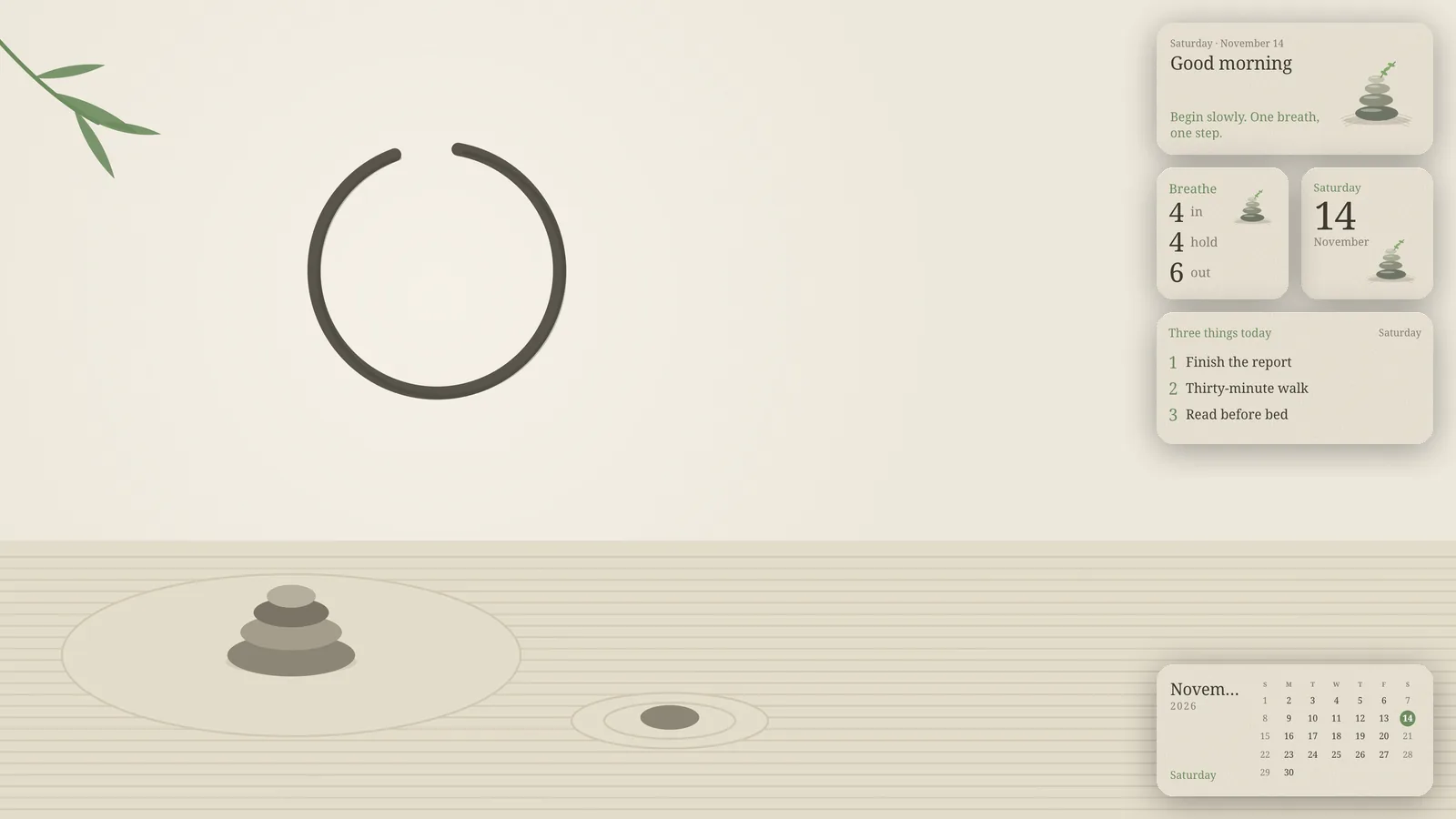
Raked sand, a few stones and a lot of empty space. Zen greeting sets a quiet intention for each part of the day, Zen day shows the date, Breathe gives a simple in four, hold four, out six rhythm, Three things holds only three priorities for today, and Zen month sits at the bottom right.
Every widget in this set is free on its own. Pair it with Windows Focus sessions (in the Clock app) and an auto-hiding taskbar for a desk that asks nothing of you.
6. Mono
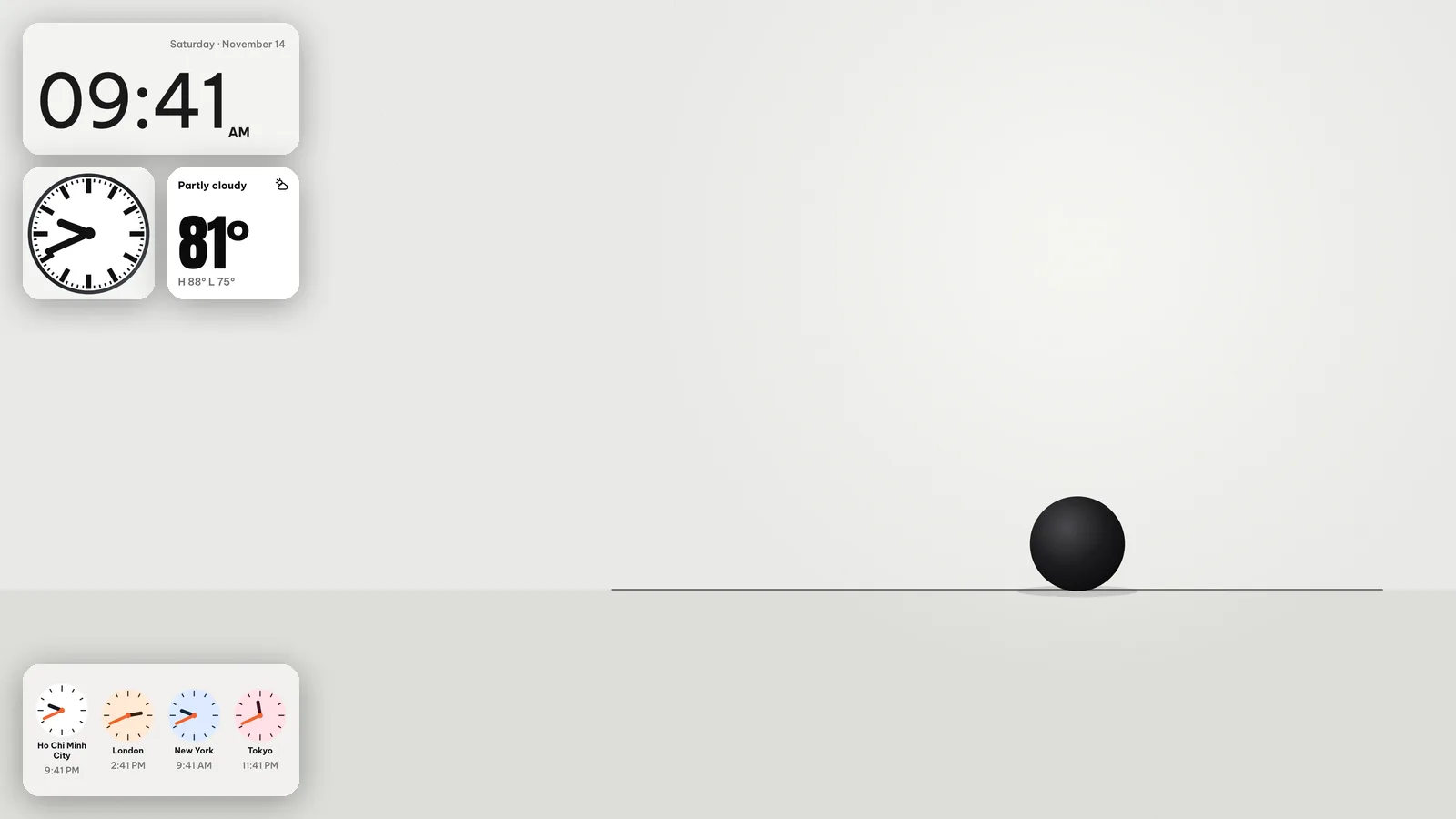
Calm grey and a single black circle. Quiet type shows only the time, set large and light, the Station clock is a bold black-and-white platform dial, Giant temperature is just the number, huge, and Four cities puts four small analog clocks at the bottom left.
Mono also comes with a dark version of its wallpaper for dark mode. Choose a graphite accent.
7. Mixtape 80s
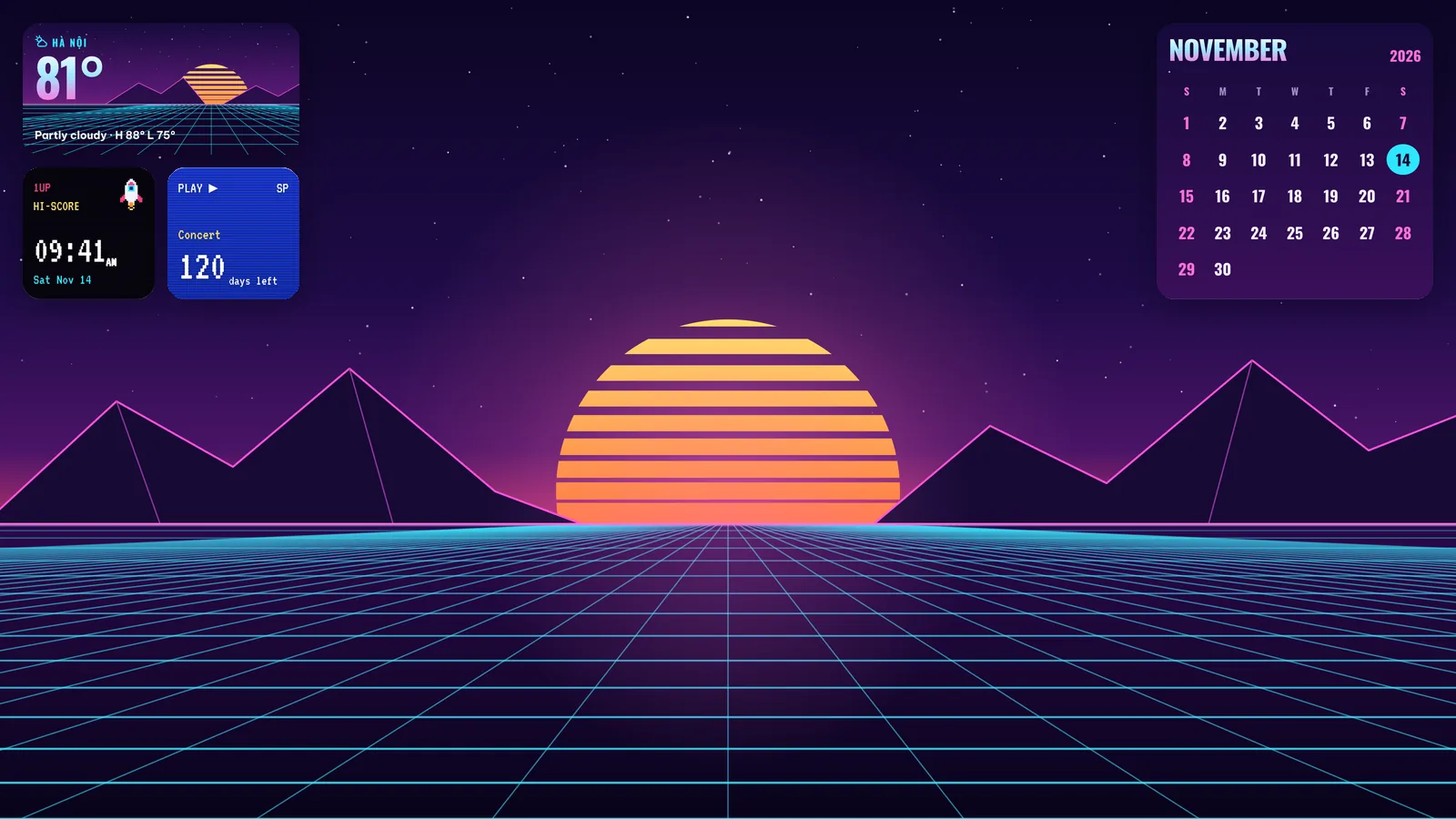
A striped sun sinking into a neon grid. Synthwave weather shows the temperature in chrome, Arcade clock shows the time as a high score in a pixel font, VHS countdown counts down to your date on a blue tape-player screen, and Neon grid month fills the right side.
Keep the taskbar centred (the Windows 11 default) so the sun sits free in the middle. Set the VHS countdown to a concert, a trip or a game launch with Customize.
8. Rainy Window
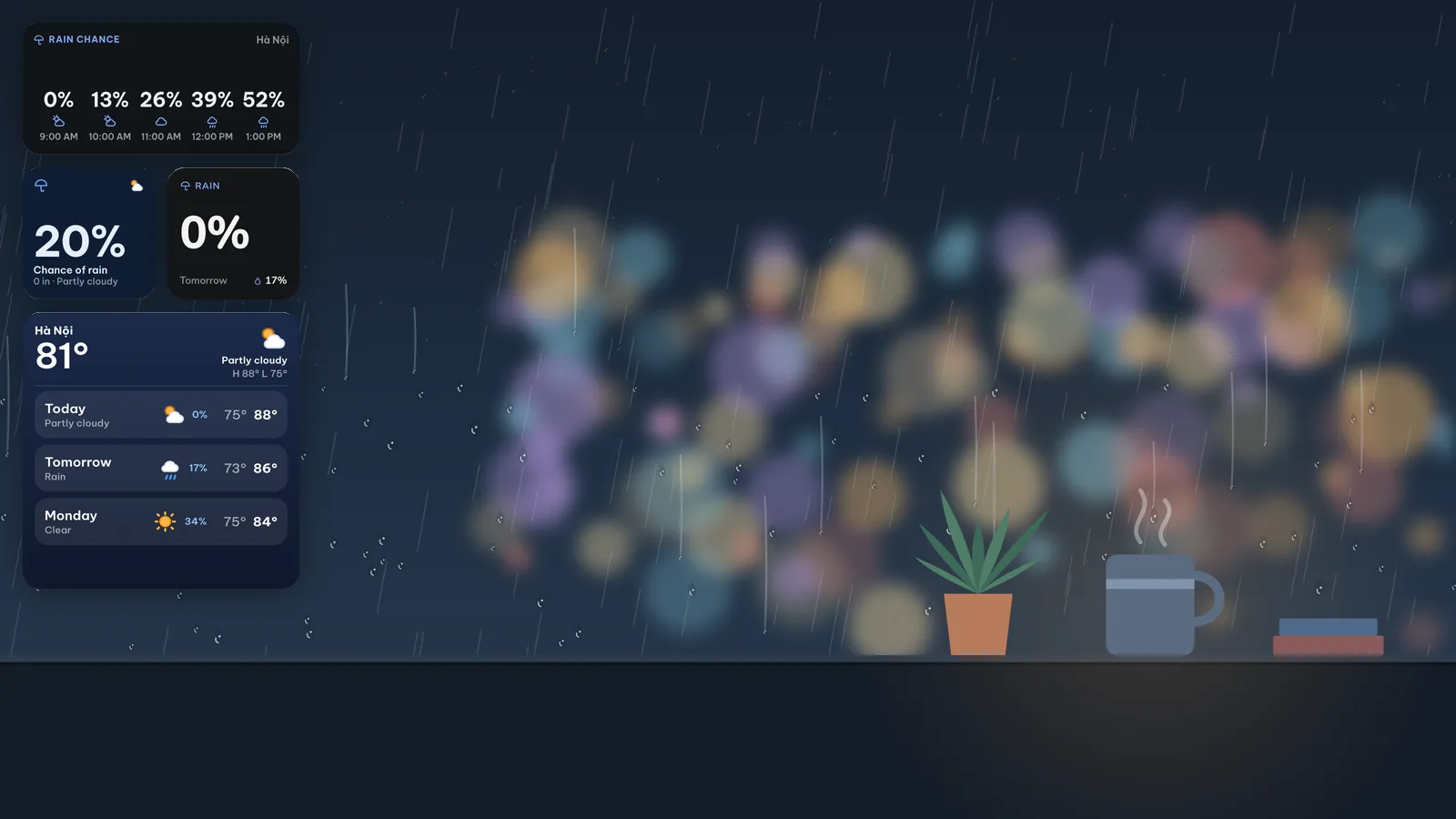
Raindrops on glass and blurred city lights behind them. This is a weather set for people who mainly want one answer: do I need an umbrella? Rain chance by hour lists the next hours as big numbers, Umbrella check and Rain chance give today and tomorrow, and Days ahead shows the next three days.
Dark mode with a blue accent. The city glow sits on the right, away from the widgets on the left.
9. Clean Beige
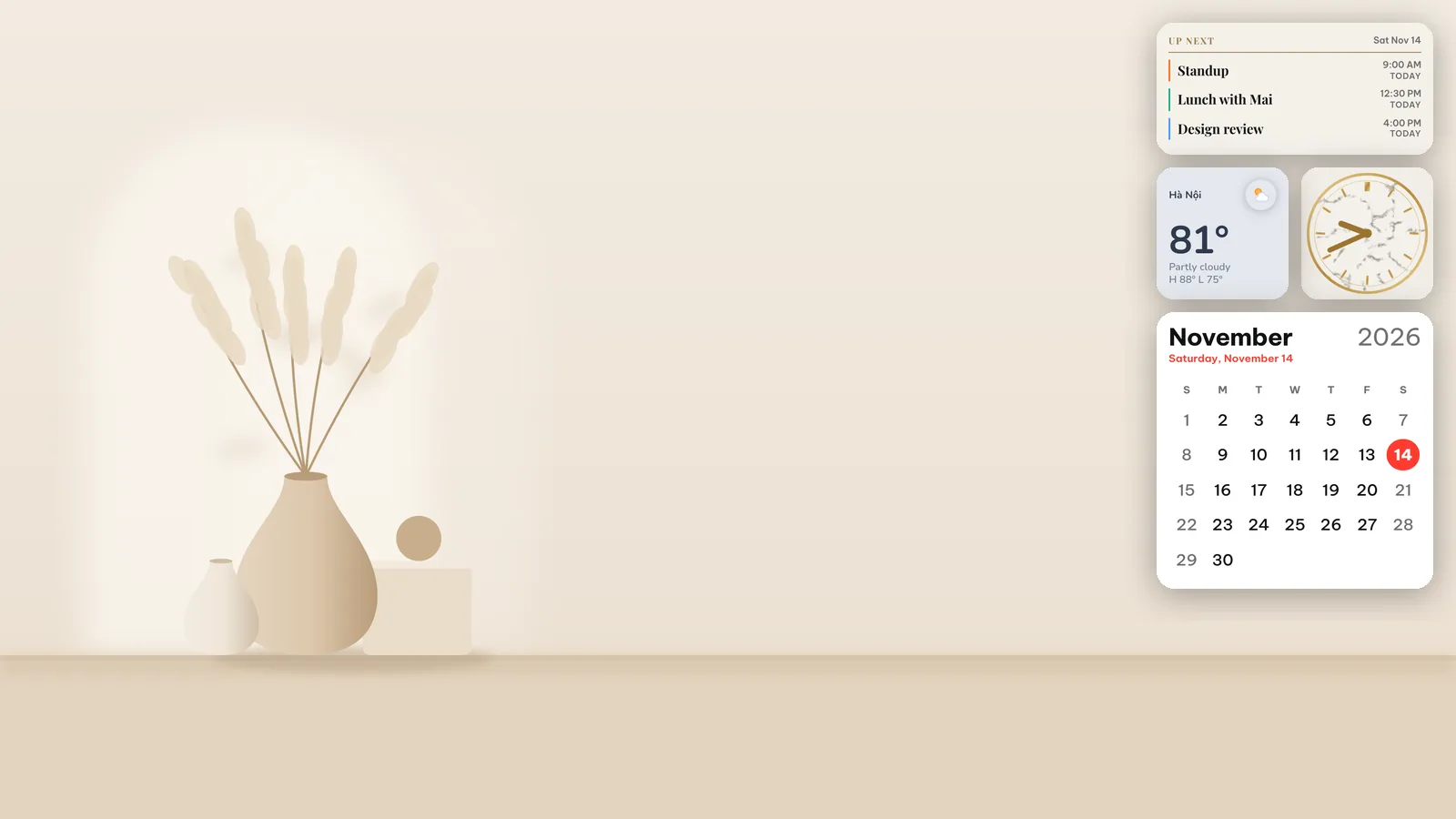
Soft arches, a vase and dried grass on a warm beige wall. A Monochrome agenda lists your next events like an engraved invitation, Marble & gold is the clock, Soft weather sits on a raised button and Minimal month is a clean white calendar with today in red.
The agenda reads the Windows calendar, so allow calendar access in WidgyKit under Account › Permissions & accuracy. Light mode with a tan or graphite accent keeps the wall calm.
10. Mountain Dawn
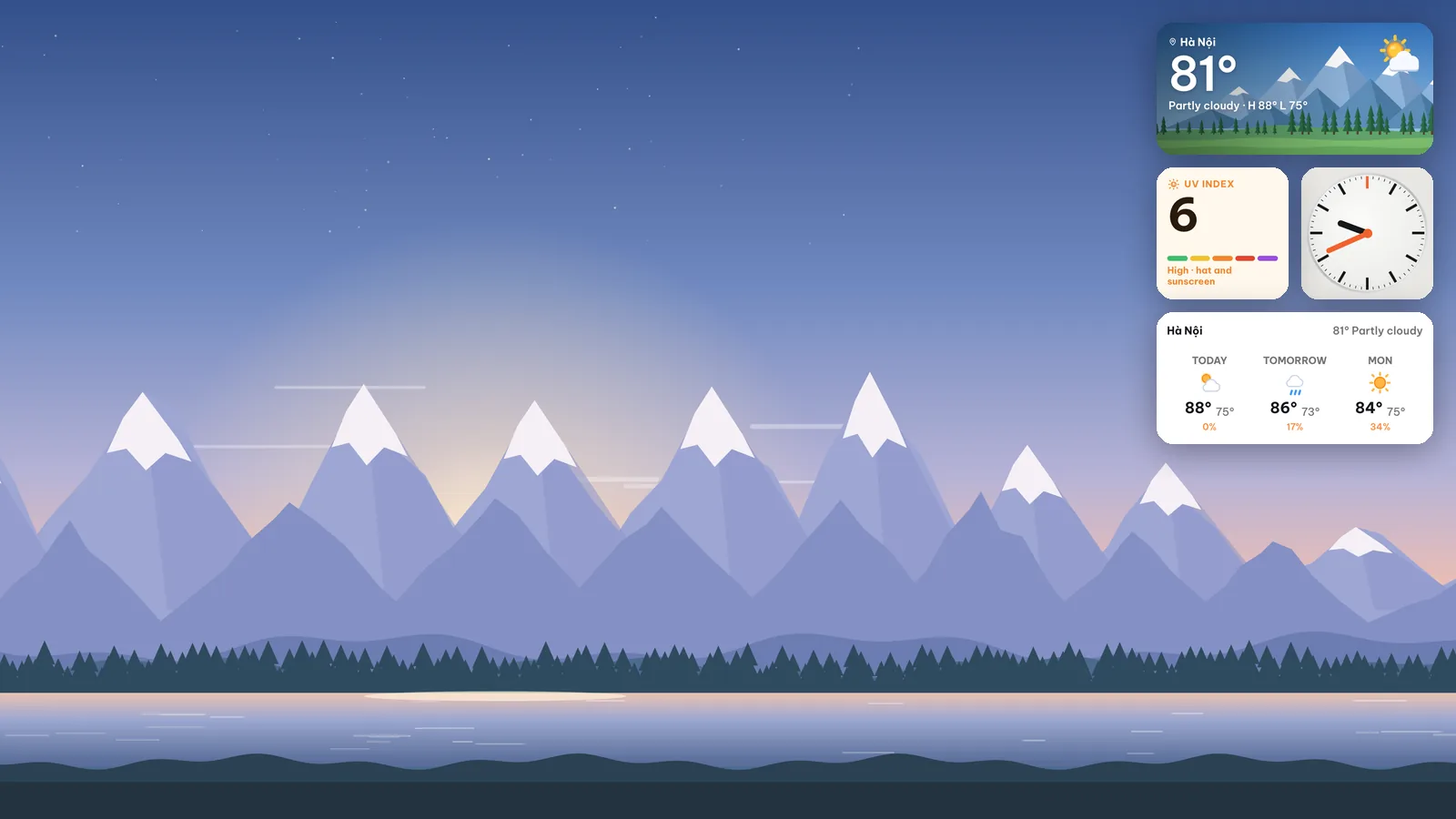
Lavender peaks at first light. Alpine weather paints the current sky over snowy mountains, Swiss minimal is a matte white dial with an orange 12, UV index tells you when to wear sunscreen, and Three days gives the forecast.
Keep the taskbar small and at the bottom so the peaks stay in view.
Tips for any setup
- Leave the busy part of the picture empty. Every set above keeps its widgets over sky, wall or dark space, never over the subject.
- Stick to one corner or one edge. Two columns of widgets on both sides look like a dashboard, not a desktop.
- Match Windows to the art. Dark or light mode and the accent colour do more for the whole look than any single widget.
- Mix and match. You can place any widget from the catalog next to a set's widgets, for example a flip clock or a countdown.
FAQ
Do these sets work on ultrawide or laptop screens?
Most sets include pictures for 16:9 screens, laptop screens and many for 21:9 ultrawide displays. The widgets hang from a screen corner, so they stay in place whatever the shape of your display.
Are the sets free?
Northern Lights is free. The others are marked Premium as sets, although many of their widgets are free on their own, for example everything in Zen Focus. WidgyKit Premium unlocks every set and design, and there are no ads on Windows.
Can I use the same look on my phone?
The widgets in these sets also exist on Android and iPhone, so you can place the same clock or weather card on your Home Screen. The desktop pictures are made for landscape screens.
Wrapping up
Pick the mood that fits how you work, apply the wallpaper, place the widgets and you are done in under a minute. Start with Northern Lights for free in WidgyKit for Windows, or see all download options.
Keep reading
Inspiration4 min read
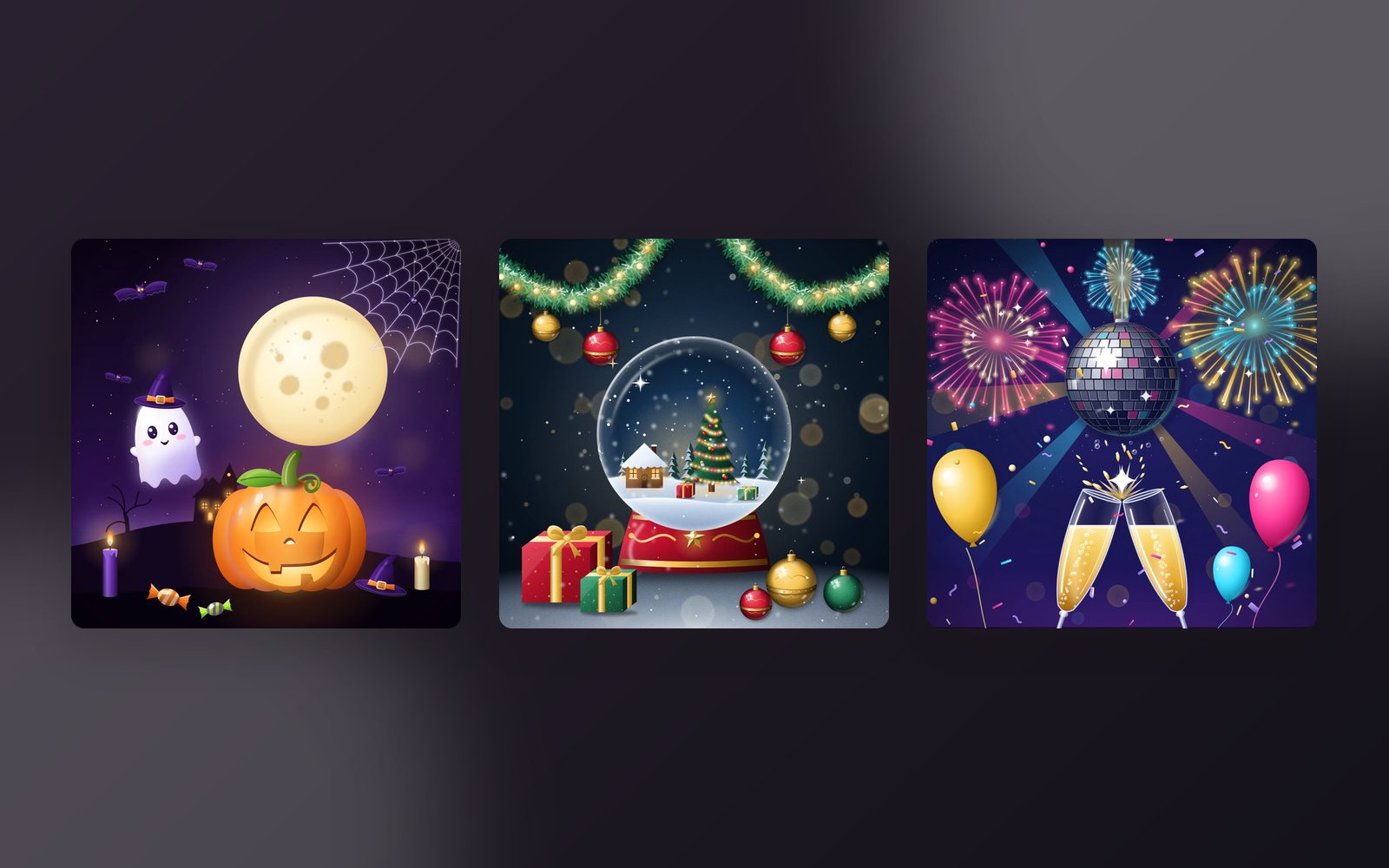
WidgyKit holiday theme sets: Halloween, Christmas and New Year
Three WidgyKit holiday theme sets, each with a countdown, a big-number card, a month calendar and wallpapers. Install a whole set in one tap.
Inspiration3 min read
WidgyKit kawaii widgets: cute habits, countdowns and love counter
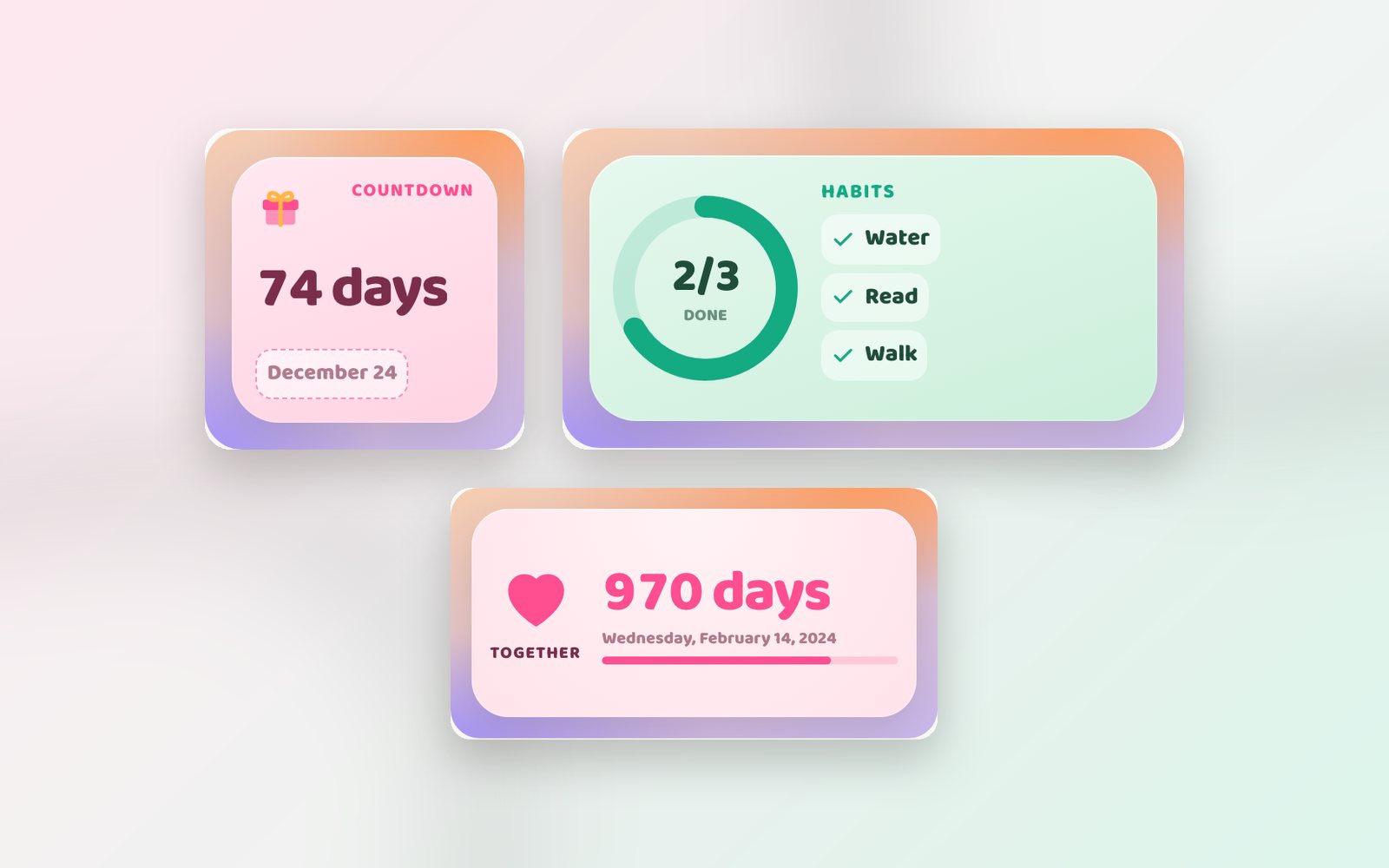
Kawaii habits, Kawaii countdown and Together: WidgyKit's pastel widgets for tracking daily habits, counting down to a big day and counting the days you've been together.
Inspiration5 min read
Countdown Widget Ideas: 10 Events Worth Counting Down To
Countdown widget ideas for New Year, birthdays, exams, trips, weddings and launches, with styling tips, fixed vs moving dates and multiple countdowns in one widget.