CulturePublished 5 min read
Christmas Countdown Widgets for Your Home Screen and Desktop
Christmas countdown widgets for iPhone, Android and Windows: a velvet snow card, a snowy village, a snowman clock, a Christmas calendar and US holidays.
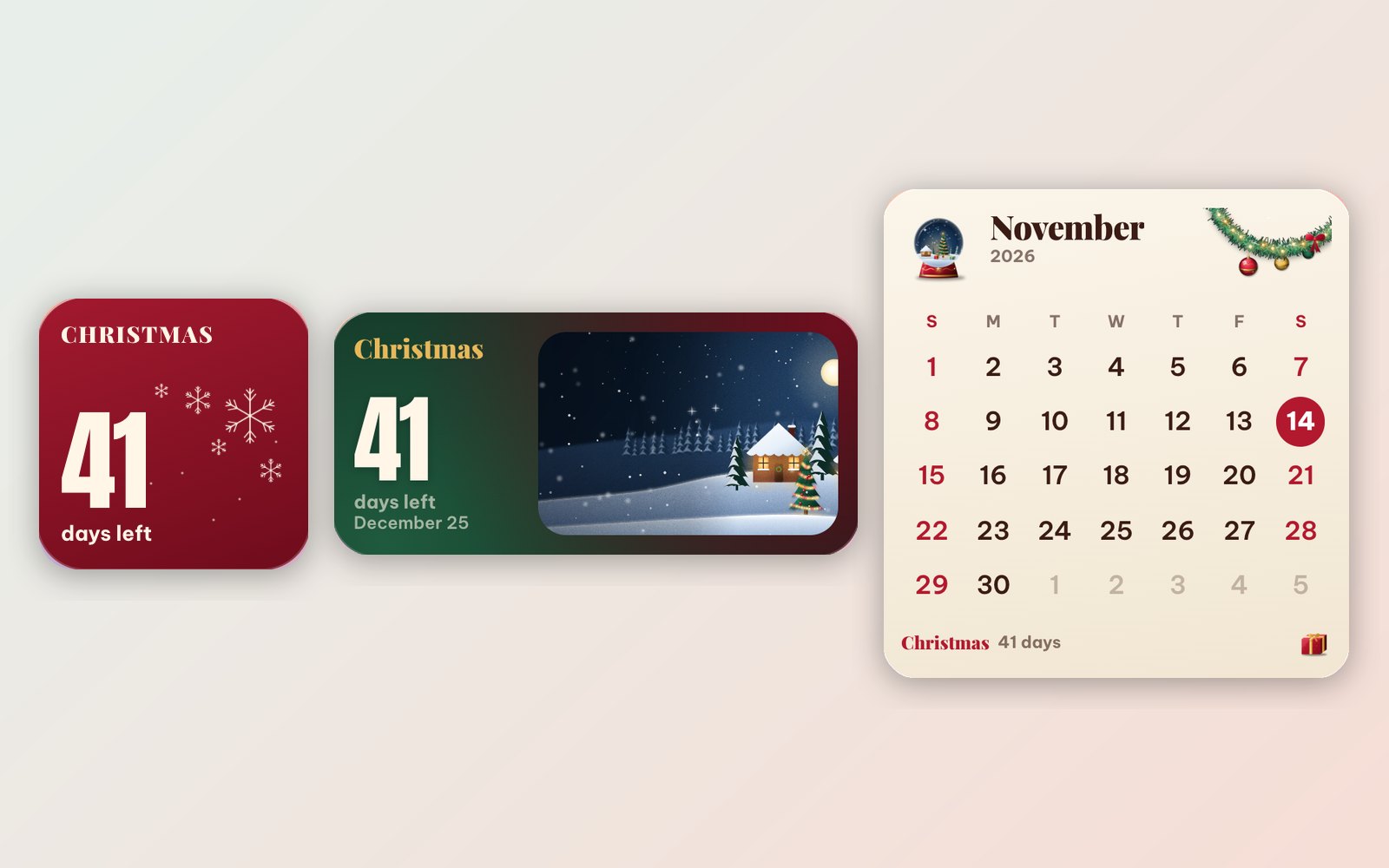
Somewhere around mid-November, "how many days until Christmas?" becomes a daily question. Kids ask it, the shopping list asks it, and the calendar on the fridge only half answers it. A countdown widget answers it every time you unlock your phone or look at your desktop, and it changes the mood of a screen more than any wallpaper.
Here are the Christmas widgets in WidgyKit, which ones are free, and how to set them up. The previews below were rendered on November 14, 2026, which is why they all say 41 days.
The quick picks
| Widget | Sizes | Price | Best for |
|---|---|---|---|
| Velvet snow card | Small | Free | One big number, nothing else |
| Christmas month | Large | Free | The whole month with the days to go |
| Christmas countdown (snowy village) | Small, medium | Small free, medium Premium | A little scene that glows as the day gets closer |
| Snowman clock | Small, medium | Small free, medium Premium | The time with a festive touch |
| United States · Holidays | Small, medium, large, Lock Screen | Free | Thanksgiving, Christmas and New Year's Day in one list |
Free: Velvet snow card and Christmas month
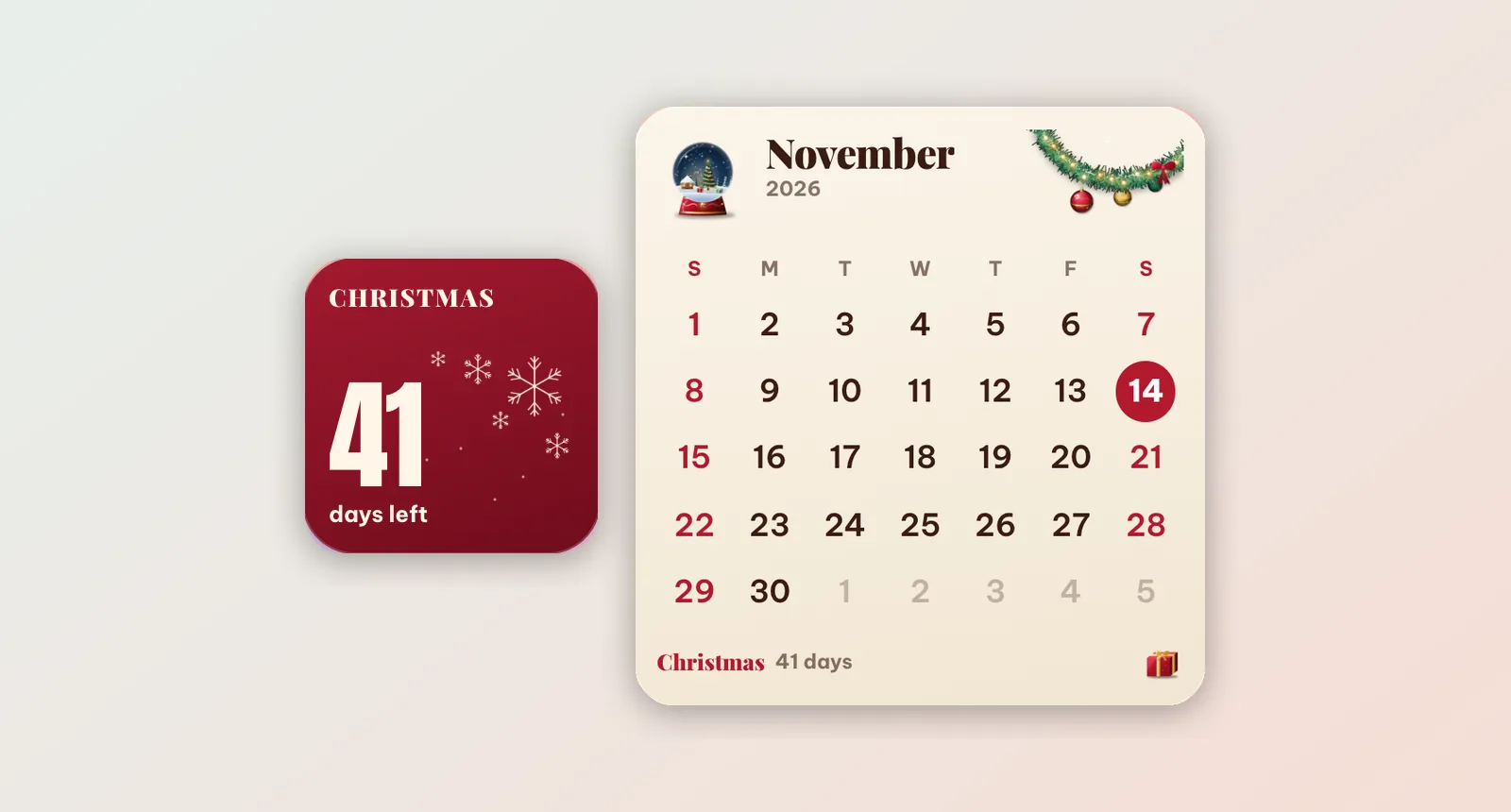
Velvet snow card is a small velvet-red square with snowflakes and one giant number: the days left until Christmas. It is the simplest countdown you can put on a screen and it reads from across the room.
Christmas month is a large cream calendar with a snow globe and a pine garland. Today is circled in red, and the bottom line keeps counting "Christmas · 41 days". Put it at the top of a Home Screen page and it doubles as your regular calendar until the end of December.
Together they make a good pair: the card on your first page, the calendar on the second.
The snowy village countdown
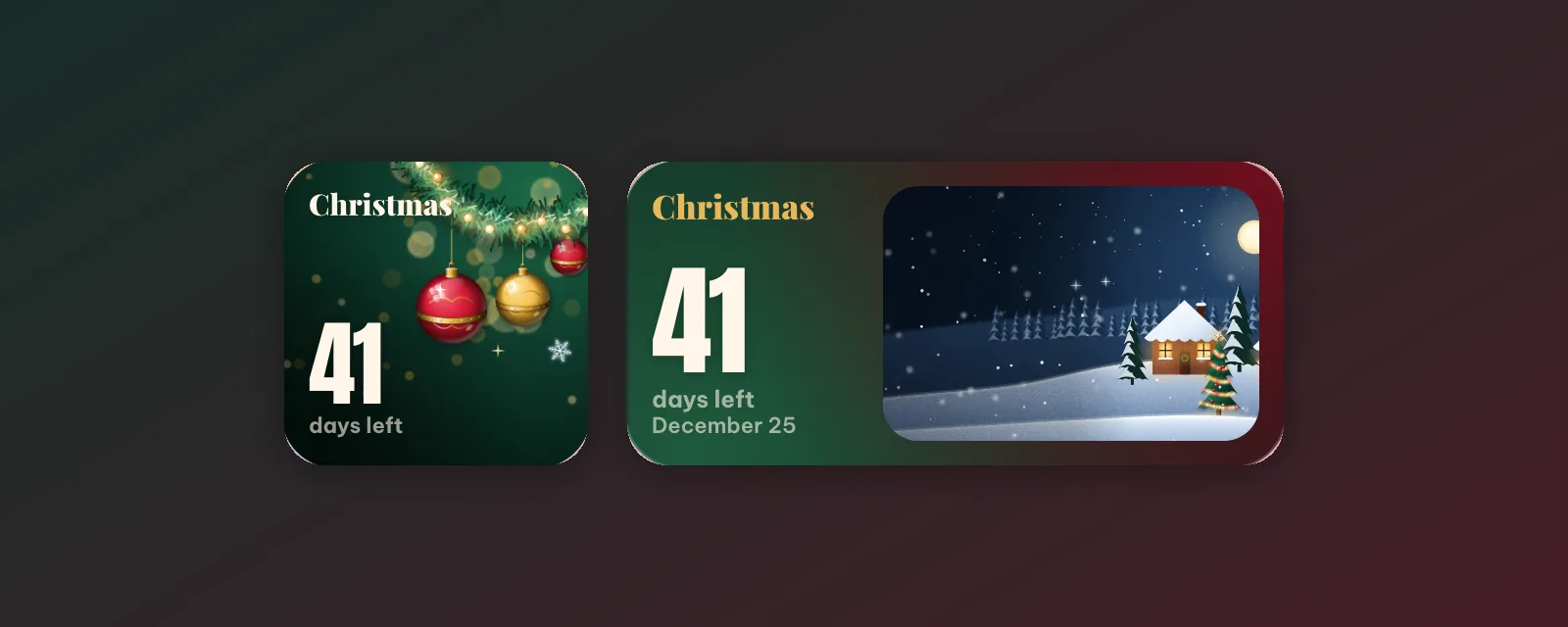
Christmas countdown shows a snowy cabin under a full moon. The small size puts the number over baubles and lights, the medium size adds the village scene beside the date. The small size is free, the medium one needs Premium.
If you want the countdown to feel like an Advent calendar, place the medium size where you see it most, for example right under the clock on your Lock Screen page or in the top corner of your desktop.
Snowman clock
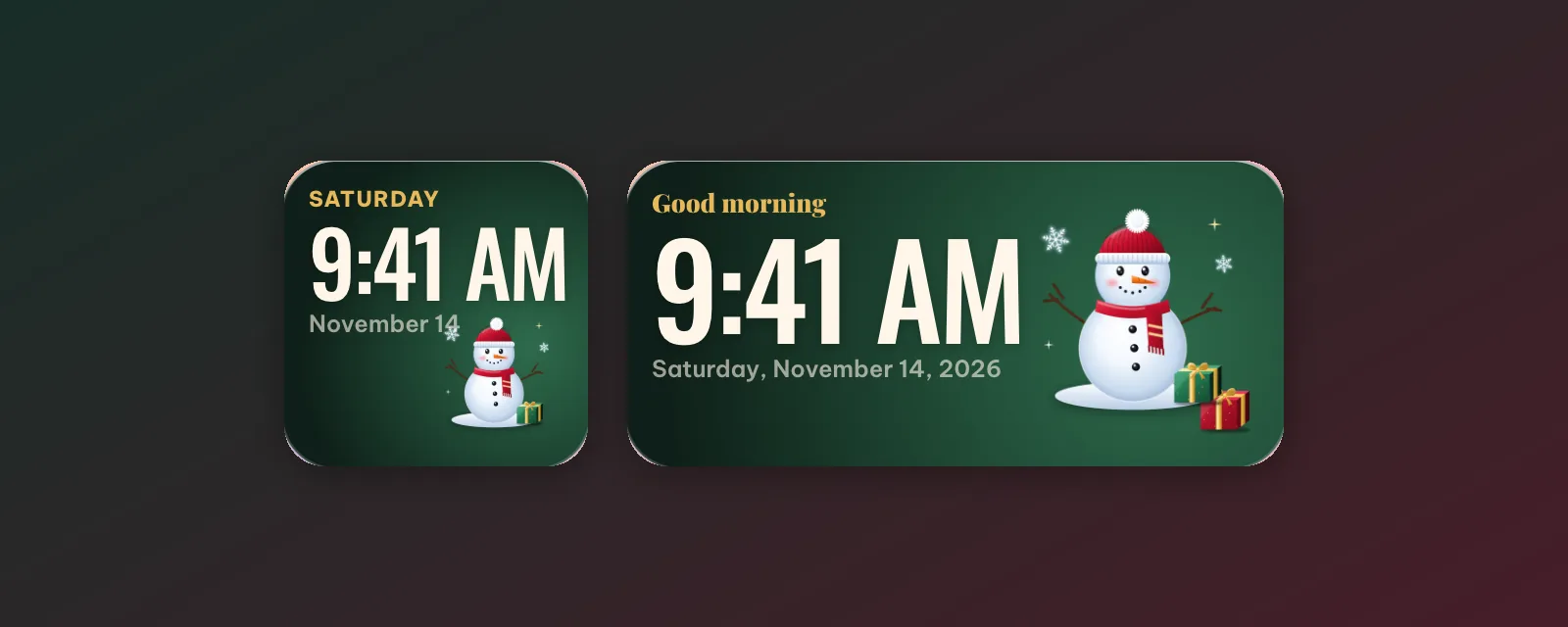
Not everything has to be a countdown. Snowman clock shows the time and date in warm cream type next to a snowman in a red hat and scarf. The medium size adds a "Good morning" greeting that changes through the day. It goes well next to the Velvet snow card.
For the whole season: United States · Holidays
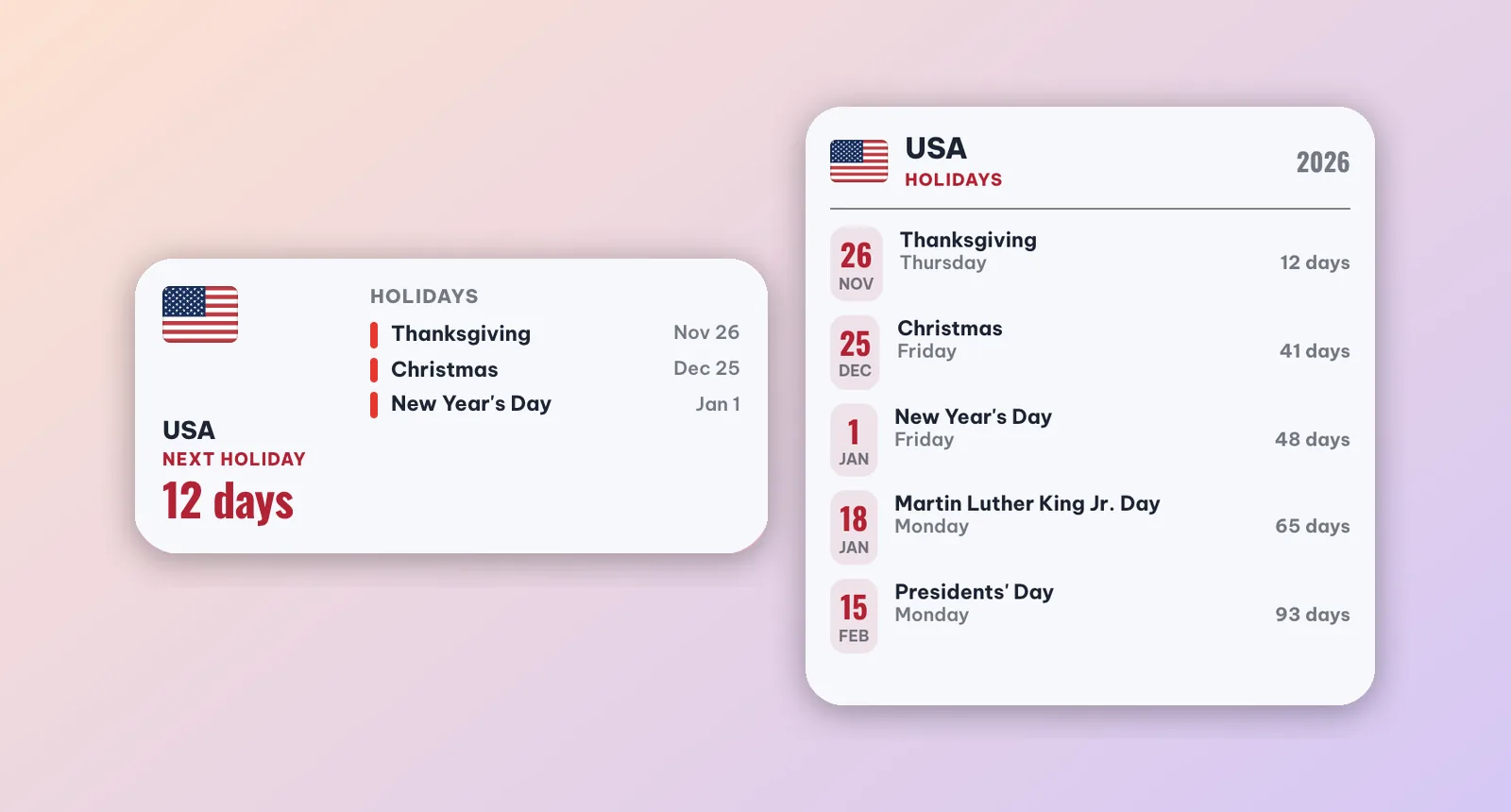
Christmas is only one stop. United States · Holidays shows the flag and your next federal holidays with the days to each one. In mid-November the large size reads:
- Thanksgiving, Thursday, November 26 (12 days)
- Christmas, Friday, December 25 (41 days)
- New Year's Day, Friday, January 1 (48 days)
- Martin Luther King Jr. Day, Monday, January 18
- Presidents' Day, Monday, February 15
It is free, comes in small, medium and large, and there is a rectangular iPhone Lock Screen version too. After New Year's Day it simply moves on to the next holiday, so it can stay on your screen all year.
Make a whole festive screen
If you want everything to match, WidgyKit has a Christmas theme set: glossy baubles, a snow globe, a twinkling pine garland and a cosy snowy wallpaper with widgets made for it. We walked through it, along with the Halloween and New Year sets, in holiday theme sets for Halloween, Christmas and New Year.
A few layouts that work well:
- Minimal: Velvet snow card and Snowman clock side by side, on a plain dark red or forest green wallpaper.
- Planner: Christmas month on top, United States · Holidays (medium) below, so you can see Thanksgiving, Christmas and New Year at once.
- Desktop: on Windows, put the Christmas countdown in the top-right corner and the Christmas month under it. Placing widgets on a PC is covered in how to put widgets on your Windows 11 desktop.
How to add a Christmas countdown
- Open WidgyKit, go to the Widgets tab and search for Christmas. In the US you will also see United States · Holidays under Suggested for you.
- Open a widget and tap Install (on Windows, click Add to desktop).
- iPhone: touch and hold an empty spot, tap Edit › Add Widget › WidgyKit, choose a size, then touch and hold the widget › Edit Widget to pick the design. Full steps in how to add widgets to your iPhone Home Screen.
- Android: touch and hold an empty spot › Widgets › drag WidgyKit onto the screen and pick the design. See how to add widgets on Android.
- Windows: the widget appears on your desktop right away. Drag it where you like.
Want to count down to something else in December, like a trip home or the last day of school? Many countdown designs let you set your own date in Customize. There are more ideas in countdown widget ideas.
FAQ
Are these Christmas widgets free?
Velvet snow card, Christmas month and United States · Holidays are free in every size. The snowy village countdown and the Snowman clock are free in small size, and their medium sizes come with WidgyKit Premium.
Does the countdown update by itself?
Yes. The number changes at midnight in your time zone, with no need to open the app.
Is WidgyKit on the App Store?
WidgyKit is live on Google Play and the Microsoft Store. On iPhone it is in public beta through TestFlight, and the download section has the three steps to join.
Wrapping up
Six weeks is the perfect runway for a countdown: long enough to enjoy the number dropping, short enough that it never feels far away. Start with the free Velvet snow card, add the US holidays list for the whole season, and download WidgyKit on your phone or PC.
Keep reading
Culture5 min read
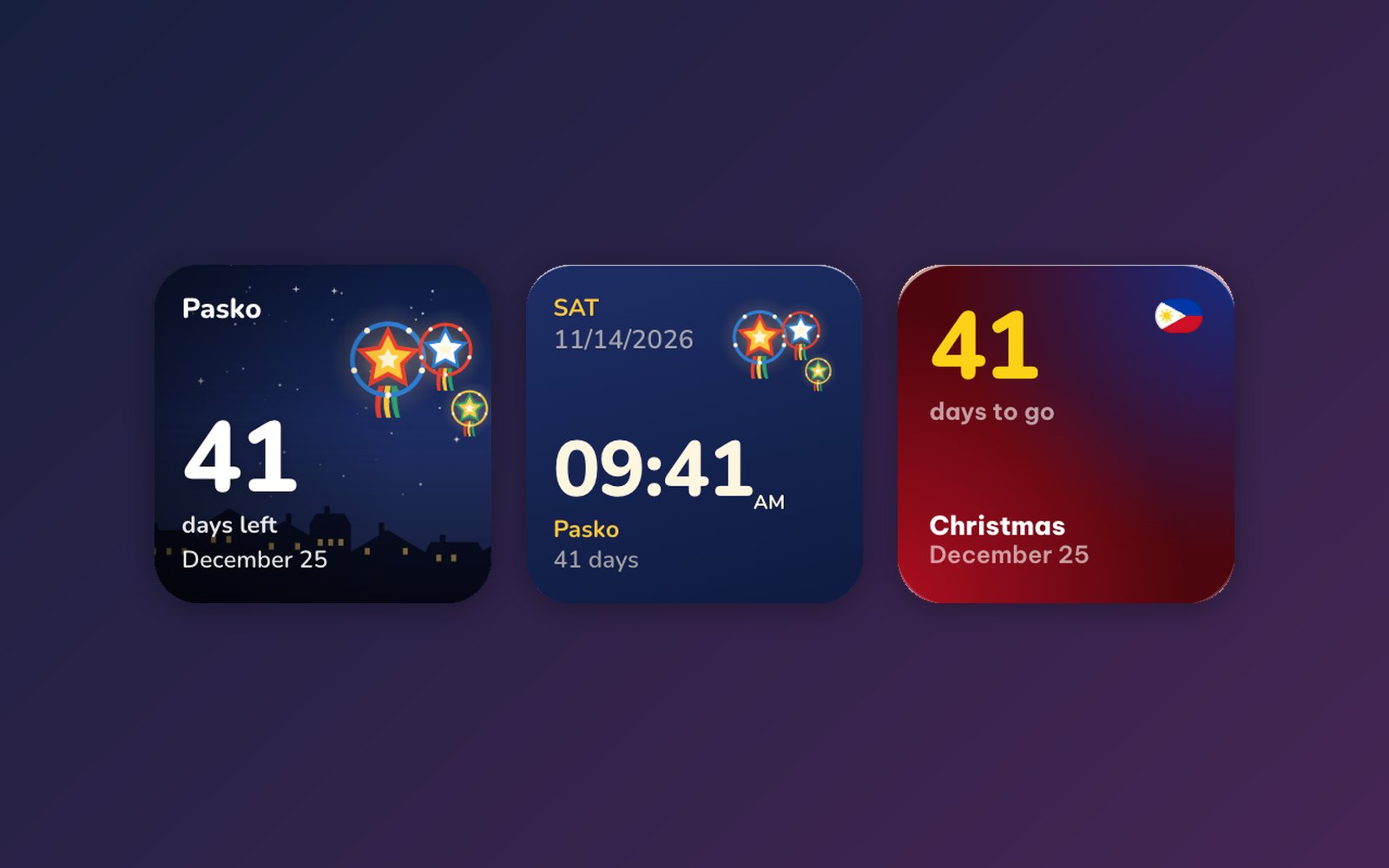
Paskong Pinoy Countdown: Christmas Widgets for the Philippines
Count down to Pasko with parol lantern widgets, a Philippine flag countdown, a Maligayang Pasko greeting and a holidays list with Rizal Day.
Inspiration7 min read
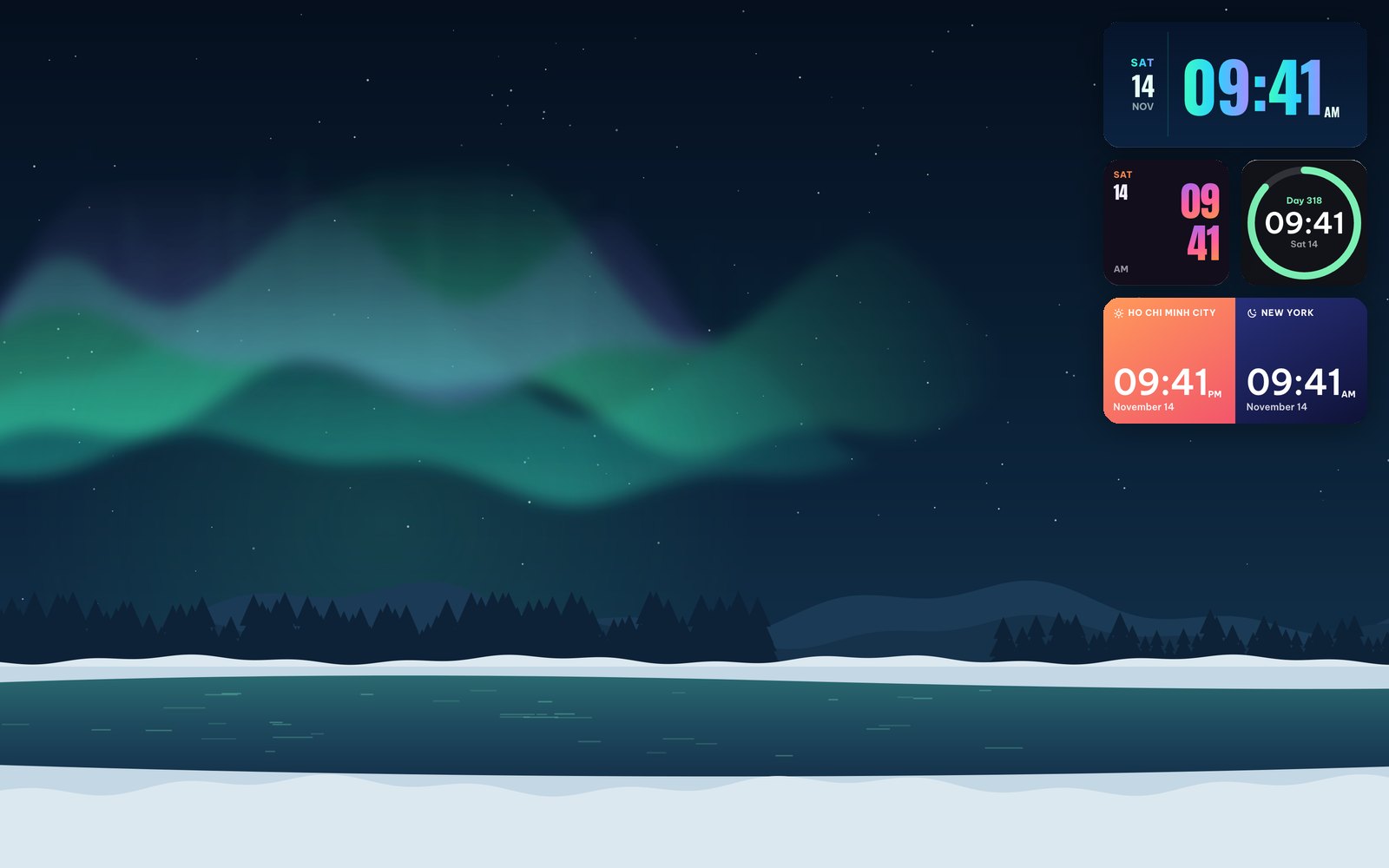
10 Aesthetic Windows Desktop Setups With Matching Widgets
Ten Windows desktop setups, each a wallpaper plus live widgets made for it: Northern Lights, Dark Academia, Hygge, City Lights, Zen, 80s synthwave and more.
Guides5 min read
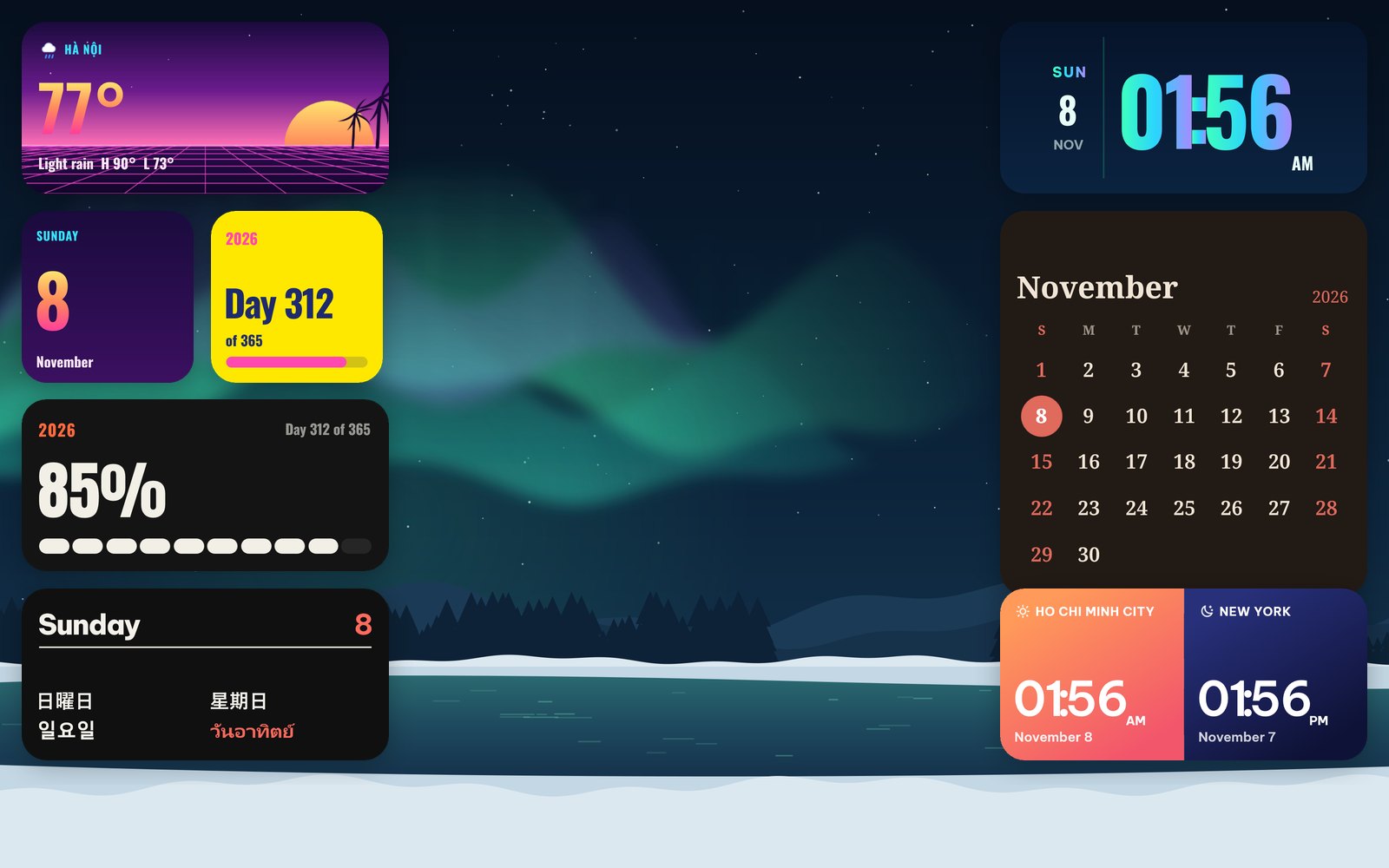
How to Put Widgets on Your Windows 11 Desktop
Windows 11 keeps widgets in a side board. Here is how to put live clocks, calendars and weather on the desktop itself, move them and keep them after a restart.